Get to Know GameFrame
In this lesson we will learn
- how a GameFrame game is made of Objects inside Rooms
- how a GameFrame project is organised into files and folders
- which GameFrame files we will work with and what they do
Terminology
- game logic – all the code that makes a game work, such as what happens when keys are pressed, when objects collide or when the score changes.
- sprite – the image used to show an object on the screen.
- root folder – the top-level folder of a project, which contains all of its other files and folders.
- asset – a file the game uses that isn't code, such as an image or a sound.
How GameFrame works
The GameFrame framework is built around objects.
We create objects that contain the logic for how our game works. These objects are then placed inside Rooms, which is where the game takes place.
Game logic
Game logic is all the code that makes a game work. It controls things like:
- what happens when the player presses keys
- what happens when objects collide
- how and when the score changes
The image below shows what our finished game will look like.
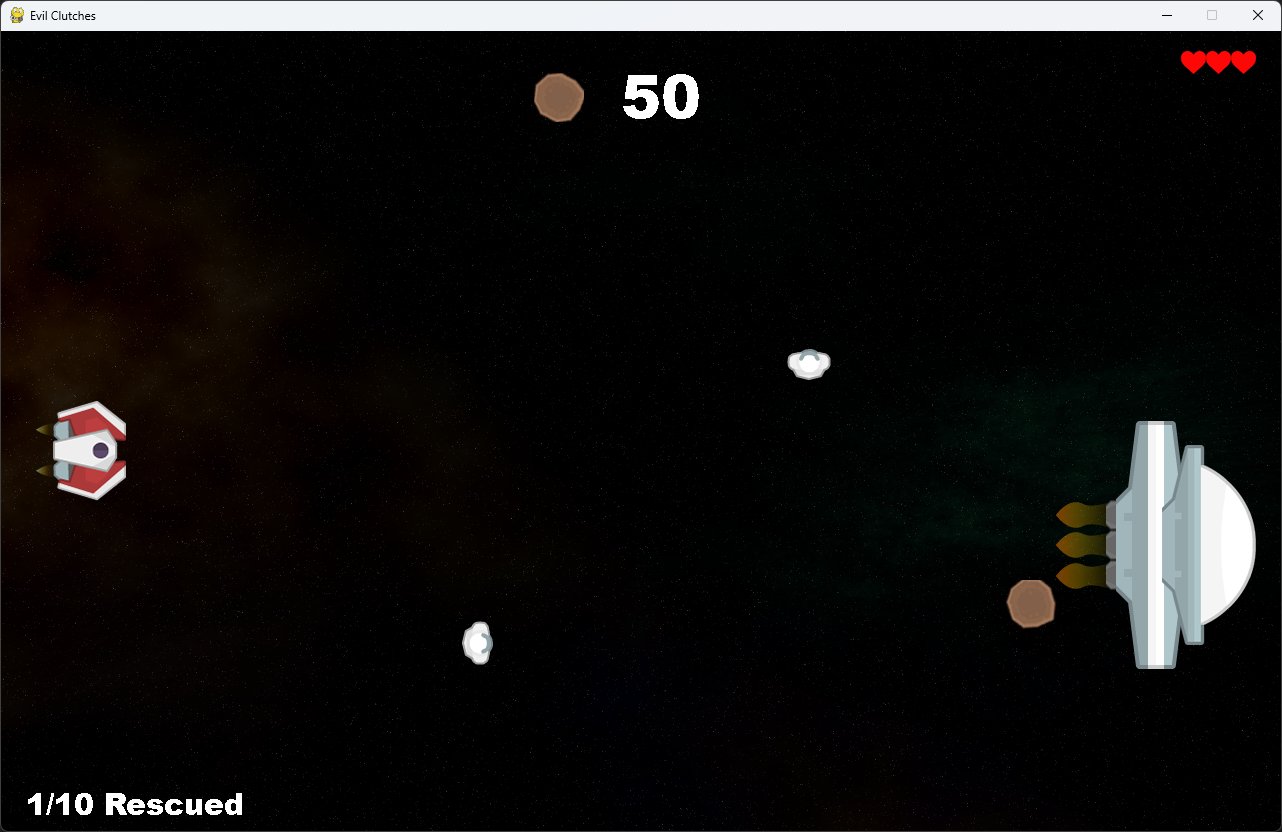
Everything we can see on the screen is an object:
- the player's spaceship on the left
- the enemy spaceship (called Zork) on the right
- the asteroids
- the astronauts
- the score
- the player's lives
All of these are inside a Room called GamePlay.
Looking closer
The player's ship object, called Ship, has:
- its sprite (image)
- code that responds to key presses
- code that stops it moving off the top and bottom of the room
- code that shoots lasers
The other objects have their own game logic. For example:
- the Zork object controls when asteroids and astronauts appear
- the Asteroid object takes a life when it hits the ship
- the Astronaut object increases the score when the ship collects it
- the Laser object destroys asteroids and astronauts when it hits them
So when we create a game in GameFrame, we need to think about:
- which objects are in our game
- how they interact with each other
- how they interact with the player
Documentation
These lessons cover many of GameFrame's features. To explore further, or to use GameFrame for your own games, the full details are on the GameFrame API page.
File structure
The other important part of GameFrame is its file structure. The image below shows how the files are organised.
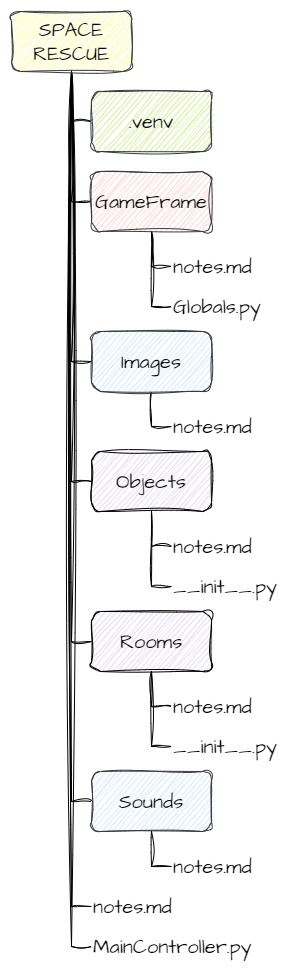
- The yellow SPACE RESCUE folder is the root folder. It contains everything for the project.
- The green .venv folder stores our virtual environment. VS Code created it during Setup.
- All the other folders and files belong to GameFrame. Each GameFrame folder has a notes.md file with documentation for that folder.
- The red GameFrame folder is the engine of the framework and holds most of the core code. The file we need to know about is Globals.py, which stores variables used across the whole game.
- The blue Images and Sounds folders store the game's assets. They already have everything Space Rescue needs. If we want to add our own images or sounds, they go in these folders.
- The purple Objects and Rooms folders are where we write most of our code. This is where we create our own classes. For example, we'll create Ship.py in the Objects folder to hold the
Shipclass.
Both the Objects and Rooms folders also have an __init__.py file. This file connects all the parts of the program together. Every time we create a new file and class, we must add it to __init__.py so GameFrame can find it. For example:
The last important file is MainController.py in the root folder. This is the file we run to start the game.