Audio
In this lesson we will learn
- how to plan sound with IPO tables
- how to load and play sounds in GameFrame
- how to add background music that keeps playing between Rooms
- how to add sound effects to events
- how to change the volume of a sound
Terminology
- background music – music that plays continuously while the game is running.
- sound effect – a short sound that plays when a particular event happens in the game.
In Game Design we found that audio feedback would make our game feel more interactive. These are the events we could add sound effects to:
| Event | Sound effect |
|---|---|
| Shooting a laser | positive |
| Shooting an asteroid | positive |
| Rescuing an astronaut | positive |
| Ship hit by an asteroid | negative |
| Shooting an astronaut | negative |
Most games also have background music playing the whole time. In this lesson we'll add all five sound effects and some background music.
Planning
Mechanisms
First, let's work out how GameFrame plays sounds. As always, the first place to look is the GameFrame API. Search the page for sound (Ctrl+F, or Cmd+F on macOS) to find everything to do with sound:
- the Sounds folder → holds all the sound files. Check your Sounds folder: it has all the sound effects we need, and some extras.
load_sound, a Room method → loads a sound file so we can use it- Pygame sound methods → something new. For the first time, we'll use methods from the Pygame layer of our stack, to play the sounds we've loaded.
So there are two steps to playing a sound in GameFrame:
- Load the sound. The sound becomes an attribute of the Room, so we load it in the Room's
__init__method. - Play the sound. Any object in the Room can play it, including RoomObjects, by using the Room's attribute.
IPO tables
Background music
Which Room should the music belong to? Background music usually starts as soon as the game loads, so we'll load and play it in the WelcomeScreen.

There's a catch, though. The WelcomeScreen is created again every time a game ends. If it started the music every time, we'd get a new copy of the music playing over the old one. So we'll use a flag variable in Globals.py to remember whether the music is already playing.
Sound effects
The sound effects are a bit more complicated. They all happen in the GamePlay Room, but they're triggered by events in different RoomObjects. So we'll split the loading and the playing:
- loading happens in the
GamePlayclass - playing happens wherever the event is handled
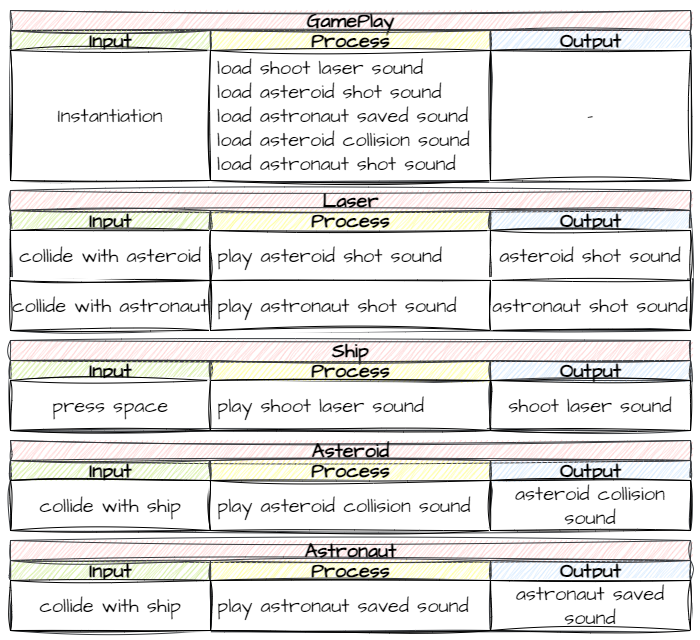
Now we know what we need to do, let's code it.
Background music
Open GameFrame/Globals.py and add the highlighted code below at the bottom of the file, in the User Defined Global Variables section. Save it.
| GameFrame/Globals.py | |
|---|---|
Code explanation
- line 43 → creates the
music_playingflag, which starts asFalsebecause no music is playing when the game starts.
Indent the new variables
The variables at the bottom of Globals.py are still inside the Globals class, even though they're below the comment block. Make sure they're indented four spaces, like total_count.
Open Rooms/WelcomeScreen.py, add the highlighted code below and save it.
Code explanation
- line 1 → imports
Globalsso we can use themusic_playingflag. - line 18 → checks that the music isn't already playing…
- line 19 → …loads Music.mp3 from the Sounds folder and stores it as
bg_music… - line 20 → …starts playing it.
loops=-1means it repeats forever… - line 21 → …and sets the flag to
True, so the next WelcomeScreen won't start another copy.
PRIMM
- Predict what will happen to the music when a game ends and the welcome screen comes back.
- Run MainController.py and play until the game ends.
- Investigate: what would happen without lines 18 and 21? Why?
Sound effects
Load the sounds
Now we need to load all the sound effects for the GamePlay Room. Open Rooms/GamePlay.py, add the highlighted code below and save it.
Code explanation
- line 26 → loads Laser_shot.ogg and stores it as
shoot_laser. - line 27 → loads Asteroid_shot.wav and stores it as
asteroid_shot. - line 28 → loads Astronaut_saved.ogg and stores it as
astronaut_saved. - line 29 → loads Ship_damage.ogg and stores it as
asteroid_collision. - line 30 → loads Astronaut_hit.ogg and stores it as
astronaut_shot.
Play the sounds
Now we add each sound to the event handler where it happens. Open Objects/Laser.py, add the highlighted code below to handle_collision and save it.
Code explanation
- line 45 → plays the
asteroid_shotsound when a laser hits an asteroid. The sound belongs to the GamePlay Room, so the laser reaches it throughself.room. Readself.room.asteroid_shot.play()as "play the asteroid_shot sound that belongs to the Room this laser is in". - line 49 → plays the
astronaut_shotsound when a laser hits an astronaut.
Open Objects/Ship.py, add the highlighted code below to shoot_laser and save it.
| Objects/Ship.py | |
|---|---|
Code explanation
- line 63 → plays the
shoot_lasersound every time a laser is fired.
Open Objects/Asteroid.py, add the highlighted code below to handle_collision and save it.
| Objects/Asteroid.py | |
|---|---|
Code explanation
- line 60 → plays the
asteroid_collisionsound when an asteroid hits the ship.
Open Objects/Astronaut.py, add the highlighted code below to handle_collision and save it.
| Objects/Astronaut.py | |
|---|---|
Code explanation
- line 38 → plays the
astronaut_savedsound when the ship rescues an astronaut.
Testing
Now let's test the sound effects. Use a testing table to check all five:
| Event | Expected sound | Actual sound | Remedy |
|---|---|---|---|
| Shooting a laser | Laser_shot.ogg | ||
| Shooting an asteroid | Asteroid_shot.wav | ||
| Rescuing an astronaut | Astronaut_saved.ogg | ||
| Ship hit by an asteroid | Ship_damage.ogg | ||
| Shooting an astronaut | Astronaut_hit.ogg |
Adjusting the volume
After testing, you may want to change the mix. With the sound files provided, the background music is too loud and drowns out the sound effects. We can change the volume of each sound with the Pygame set_volume method, from 0.0 (silent) to 1.0 (full volume).
Open Rooms/WelcomeScreen.py, add the highlighted code below and save it.
Code explanation
- line 20 → sets the music's volume to 10% before it starts playing.
PRIMM
- Predict how the game will sound now.
- Run MainController.py.
- Investigate: try some other volumes, for the music and for a sound effect in GamePlay.py. Which mix do you like best?
Commit and push
- In GitHub Desktop, type Added audio in the Summary box.
- Click Commit to main.
- Click Push origin.