Ship Choice
In this lesson we will learn
- how meaningful choices give players a sense of control
- how to reuse a menu design for a new choice
- how to set up an object differently depending on a setting
- how to build a power-up with an active time and a cooldown
- how one object can change its movement because of another object
Terminology
- special power – an ability the player can turn on for a short time to get an advantage.
- cooldown – the waiting time after a power has been used before it can be used again.
- power meter – a HUD item that shows whether a special power is ready, active or cooling down.
In Game Design we learnt that choices that seem to change the game give players more control and get them more involved. Let's give the player a choice of two ships, each with its own special power.
| Ship |
Image |
Special power (Ctrl) |
| Swerver |
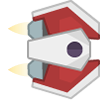 |
the ship moves twice as fast |
| Attractor |
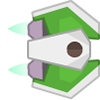 |
astronauts move towards the ship |
Planning
Choosing the ship
This works just like the difficulty menu: a ShipSelect Room with a ShipMenu object. The menu images are in Images/Select_ship_frames. The player presses S for the Swerver or A for the Attractor, and the choice is saved in Globals.ship_type.
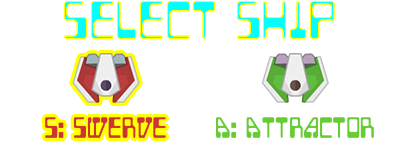
The special power
Each ship's power works the same way:
- The player presses Ctrl while the power is ready.
- The power is active for 5 seconds (150 ticks).
- The power then cools down for 10 seconds (300 ticks) before it's ready again.
A power meter under the lives shows what's happening. The images in Images/Skill_frames go from 5 bars down to 1 bar, then COOLDOWN:

| Event |
Input |
Process |
Output |
| Use power |
the player presses Ctrl and the power is ready |
set power to active, play a sound, start the meter draining, start a 150-tick timer |
the power is on |
| Power ends |
the 150-tick timer finishes |
set power to not active, start a 300-tick timer |
the meter shows COOLDOWN |
| Power recharged |
the 300-tick timer finishes |
set power to ready |
the meter shows 5 bars |
| Swerver power |
the power is active |
use a movement speed of 20 instead of 10 |
the ship moves faster |
| Attractor power |
the power is active |
each astronaut moves up or down towards the ship |
astronauts drift towards the ship |
That's a lot, so we'll build it in stages: the menu first, then the ship's images, then the meter, then the powers.
Choose a ship
Open GameFrame/Globals.py, change the highlighted code below and save it.
| GameFrame/Globals.py |
|---|
| class Globals:
running = True
FRAMES_PER_SECOND = 30
SCREEN_WIDTH = 1280
SCREEN_HEIGHT = 800
SCORE = 0
# - Set the starting number of lives - #
LIVES = 3
# - Set the Window display name - #
window_name = 'Space Rescue'
# - Set the order of the rooms - #
levels = ["WelcomeScreen", "DifficultySelect", "ShipSelect", "GamePlay"]
# - Set the starting level - #
start_level = 0
# - Set this number to the level you want to jump to when the game ends - #
end_game_level = 0
# - This variable keeps track of the room that will follow the current room - #
# - Change this value to move through rooms in a non-sequential manner - #
next_level = 0
# - Change variable to True to exit the program - #
exiting = False
# ############################################################# #
# ###### User Defined Global Variables below this line ######## #
# ############################################################# #
total_count = 0
destroyed_count = 0
# - Space Rescue variables - #
music_playing = False
# - difficulty settings (Medium until the player chooses) - #
asteroid_spawn_min = 15
asteroid_spawn_max = 150
asteroid_speed = 10
# - rescue goal - #
rescue_goal = 10
rescued = 0
# - asteroids shot in a row - #
streak = 0
# - the ship the player chose - #
ship_type = "Swerver"
|
Code explanation
- line 19 → adds
"ShipSelect" to the list of Rooms, after DifficultySelect.
- line 58 → stores the chosen ship, starting with the Swerver.
Create a new file in the Objects folder, add the code below and save it as ShipMenu.py. It's very like DifficultyMenu.py.
| Objects/ShipMenu.py |
|---|
| from GameFrame import RoomObject, Globals
import pygame
class ShipMenu(RoomObject):
"""
A menu for choosing the player's ship
"""
def __init__(self, room, x, y):
"""
Initialise the ship menu
"""
RoomObject.__init__(self, room, x, y)
# load the menu images (each one highlights a different ship)
self.menu_images = []
for index in range(2):
self.menu_images.append(self.load_image(f"Select_ship_frames/Select_ship_{index}.png"))
self.set_image(self.menu_images[0], 400, 145)
# register for key events
self.handle_key_events = True
self.chosen = False
def key_pressed(self, key):
"""
Choose a ship with the S or A key
"""
if self.chosen:
return
if key[pygame.K_s]:
self.choose(0, "Swerver")
elif key[pygame.K_a]:
self.choose(1, "Attractor")
def choose(self, index, ship_type):
"""
Saves the chosen ship, highlights it, then starts the game
"""
Globals.ship_type = ship_type
self.set_image(self.menu_images[index], 400, 145)
self.chosen = True
self.set_timer(15, self.start_game)
def start_game(self):
"""
Ends this Room so the game moves on to GamePlay
"""
self.room.running = False
|
Code explanation
- lines 1–2 → import
RoomObject, Globals and Pygame.
- line 4 → defines the
ShipMenu class as a subclass of RoomObject.
- lines 5–7 → a docstring that explains what the class is for.
- line 8 → defines the
__init__ method.
- lines 9–11 → a docstring that explains what the method does.
- line 12 → runs
RoomObject's __init__ method.
- lines 15–17 → load the two menu images into a list.
- line 18 → shows the menu with the Swerver highlighted, because it's the starting choice.
- line 21 → registers the menu for key events.
- line 22 → creates the
chosen flag, so the player can only choose once.
- line 24 → defines the
key_pressed event handler.
- lines 25–27 → a docstring that explains what the method does.
- lines 28–29 → leave the method straight away if a ship has already been chosen.
- lines 31–32 → if S is pressed, choose the Swerver (menu image
0).
- lines 33–34 → if A is pressed, choose the Attractor (menu image
1).
- line 36 → defines the
choose method, which takes the menu image and the ship's name.
- lines 37–39 → a docstring that explains what the method does.
- line 40 → saves the ship's name in
Globals, so the Ship can use it in GamePlay.
- line 41 → highlights the chosen ship.
- line 42 → sets the
chosen flag to True.
- line 43 → starts a half-second timer that calls
start_game.
- line 45 → defines the
start_game method.
- lines 46–48 → a docstring that explains what the method does.
- line 49 → ends the ShipSelect Room, so the game moves on to GamePlay.
Open Objects/__init__.py, add the highlighted code below and save it.
| Objects/__init__.py |
|---|
| from Objects.Title import Title
from Objects.Ship import Ship
from Objects.Zork import Zork
from Objects.Asteroid import Asteroid
from Objects.Laser import Laser
from Objects.Astronaut import Astronaut
from Objects.Hud import Score, Lives, Rescued, Streak
from Objects.DifficultyMenu import DifficultyMenu
from Objects.Bonus import RepairKit, Shield
from Objects.ShipMenu import ShipMenu
|
Code explanation
- line 10 → imports the
ShipMenu class.
Create a new file in the Rooms folder, add the code below and save it as ShipSelect.py.
| Rooms/ShipSelect.py |
|---|
| from GameFrame import Level
from Objects.ShipMenu import ShipMenu
class ShipSelect(Level):
"""
Screen for choosing the player's ship
"""
def __init__(self, screen, joysticks):
Level.__init__(self, screen, joysticks)
# set background image
self.set_background_image("background.png")
# add ship menu
self.add_room_object(ShipMenu(self, 440, 327))
|
Code explanation
- lines 1–2 → import
Level and the ShipMenu class.
- line 4 → defines the
ShipSelect class as a subclass of Level.
- lines 5–7 → a docstring that explains what the class is for.
- lines 8–9 → define
__init__ and run Level's __init__ method.
- line 12 → sets the background image.
- line 15 → adds a ShipMenu in the middle of the screen. The menu is 400 × 145 pixels, so
x = (1280 - 400) / 2 = 440 and y = (800 - 145) / 2 = 327.
Open Rooms/__init__.py, add the highlighted code below and save it.
| Rooms/__init__.py |
|---|
| from Rooms.WelcomeScreen import WelcomeScreen
from Rooms.GamePlay import GamePlay
from Rooms.DifficultySelect import DifficultySelect
from Rooms.ShipSelect import ShipSelect
|
Code explanation
- line 4 → imports the
ShipSelect class.
Use the chosen ship's images
Each ship has a normal image and a shielded image. Right now the Ship loads Ship.png in __init__ and again in shield_off. Let's choose both images once, in __init__, and store them as attributes. Open Objects/Ship.py, change the highlighted code below and save it.
| Objects/Ship.py |
|---|
| from GameFrame import RoomObject, Globals
from Objects.Laser import Laser
import pygame
import random
class Ship(RoomObject):
"""
A class for the player's avatar (the Ship)
"""
def __init__(self, room, x, y):
"""
Initialise the Ship object
"""
RoomObject.__init__(self, room, x, y)
# set images for the chosen ship
if Globals.ship_type == "Attractor":
self.normal_image = self.load_image("Attractor_frames/Rescue_0.png")
self.shield_image = self.load_image("Attractor_invinc_frames/Rescue_0.png")
else:
self.normal_image = self.load_image("Rescue_frames/Rescue_0.png")
self.shield_image = self.load_image("Rescue_invinc_frames/Rescue_0.png")
self.set_image(self.normal_image,100,100)
# register events
self.handle_key_events = True
self.can_shoot = True
# the shield starts off
self.shielded = False
def key_pressed(self, key):
"""
Respond to keypress up and down
"""
if key[pygame.K_w]:
self.y_speed = -10
elif key[pygame.K_s]:
self.y_speed = 10
if key[pygame.K_SPACE]:
self.shoot_laser()
def keep_in_room(self):
"""
Keeps the ship inside the room
"""
if self.y < 0:
self.y = 0
elif self.y + self.height > Globals.SCREEN_HEIGHT:
self.y = Globals.SCREEN_HEIGHT - self.height
def step(self):
"""
Determine what happens to the Ship on each tick of the game clock
"""
self.keep_in_room()
def shoot_laser(self):
"""
Shoots a laser from the ship
"""
max_lasers = self.room.streak.max_lasers()
if self.can_shoot and self.room.count_object("Laser") < max_lasers:
new_laser = Laser(self.room,
self.x + self.width,
self.y + self.height/2 - 4)
self.room.add_room_object(new_laser)
self.can_shoot = False
self.set_timer(10,self.reset_shot)
self.room.shoot_laser.play()
def reset_shot(self):
"""
Allows ship to shoot again
"""
self.can_shoot = True
def shield_on(self):
"""
Protects the ship from asteroids for a random time
"""
self.shielded = True
self.set_image(self.shield_image,100,100)
self.set_timer(random.randint(150, 300), self.shield_off)
def shield_off(self):
"""
Turns the shield off again
"""
self.shielded = False
self.set_image(self.normal_image,100,100)
|
Code explanation
- line 18 → checks if the player chose the Attractor…
- lines 19–20 → …and if so, stores the green ship's normal and shielded images…
- line 21 → …otherwise…
- lines 22–23 → …stores the red Swerver's normal and shielded images.
- line 24 → shows the normal image.
- line 86 → shows the stored shield image when the shield turns on.
- line 94 → shows the stored normal image when the shield turns off.
PRIMM
- Predict what you'll see after choosing each ship.
- Run MainController.py and try both ships. Pick up a shield with each one.
- Investigate: why is it better to store the images in
__init__ than to check Globals.ship_type again in shield_on and shield_off?
Add the power meter
The power meter is part of the HUD. Open Objects/Hud.py, add the highlighted code below at the bottom and save it.
| Objects/Hud.py |
|---|
| self.update_text()
class PowerMeter(RoomObject):
"""
A class for showing how much special power is left
"""
def __init__(self, room, x: int, y: int):
"""
Initialises the power meter
"""
RoomObject.__init__(self, room, x, y)
# load the meter images: 5 bars down to 1 bar, then COOLDOWN
self.meter_images = []
for index in range(6):
self.meter_images.append(self.load_image(f"Skill_frames/Skill_{index}.png"))
self.show(0)
def show(self, index):
"""
Shows one of the meter images
"""
self.set_image(self.meter_images[index], 124, 23)
def drain(self):
"""
Takes one bar off the meter every second until it reaches COOLDOWN
"""
self.level += 1
self.show(self.level)
if self.level < 5:
self.set_timer(30, self.drain)
def start(self):
"""
Starts draining the meter from full
"""
self.level = 0
self.set_timer(30, self.drain)
|
Code explanation
- line 107 → defines the
PowerMeter class as a subclass of RoomObject, because it shows images.
- lines 108–110 → a docstring that explains what the class is for.
- line 111 → defines the
__init__ method.
- lines 112–114 → a docstring that explains what the method does.
- line 115 → runs
RoomObject's __init__ method.
- lines 118–120 → load the six meter images (index
0 is 5 bars, index 5 is COOLDOWN) into a list.
- line 121 → shows the full meter.
- line 123 → defines the
show method, which shows one meter image.
- lines 124–126 → a docstring that explains what the method does.
- line 127 → sets the image to the one at
index.
- line 129 → defines the
drain method.
- lines 130–132 → a docstring that explains what the method does.
- line 133 → moves the meter one image along…
- line 134 → …and shows it.
- line 135 → if the meter hasn't reached COOLDOWN (image
5) yet…
- line 136 → …calls
drain again in 30 ticks (1 second). A method that sets a timer to call itself is a handy way to repeat something a set number of times.
- line 138 → defines the
start method, which the Ship calls when the power is used.
- lines 139–141 → a docstring that explains what the method does.
- line 142 → starts the meter at full.
- line 143 → starts draining in 1 second.
Open Objects/__init__.py, change the highlighted code below and save it.
| Objects/__init__.py |
|---|
| from Objects.Title import Title
from Objects.Ship import Ship
from Objects.Zork import Zork
from Objects.Asteroid import Asteroid
from Objects.Laser import Laser
from Objects.Astronaut import Astronaut
from Objects.Hud import Score, Lives, Rescued, Streak, PowerMeter
from Objects.DifficultyMenu import DifficultyMenu
from Objects.Bonus import RepairKit, Shield
from Objects.ShipMenu import ShipMenu
|
Code explanation
- line 7 → imports the
PowerMeter class as well.
Open Rooms/GamePlay.py, change the highlighted code below and save it.
| Rooms/GamePlay.py |
|---|
| from GameFrame import Level, Globals
from Objects.Ship import Ship
from Objects.Zork import Zork
from Objects.Hud import Score, Lives, Rescued, Streak, PowerMeter
class GamePlay(Level):
def __init__(self, screen, joysticks):
Level.__init__(self, screen, joysticks)
# set background image
self.set_background_image("background.png")
# add objects
self.ship = Ship(self, 25, 50)
self.add_room_object(self.ship)
self.add_room_object(Zork(self,1120, 50))
# add HUD items
self.score = Score(self,
Globals.SCREEN_WIDTH/2 - 20, 20,
str(Globals.SCORE))
self.add_room_object(self.score)
self.lives = Lives(self, Globals.SCREEN_WIDTH - 150, 20)
self.add_room_object(self.lives)
self.rescued = Rescued(self, 20, Globals.SCREEN_HEIGHT - 60)
self.add_room_object(self.rescued)
self.streak = Streak(self, Globals.SCREEN_WIDTH - 480, Globals.SCREEN_HEIGHT - 60)
self.add_room_object(self.streak)
self.power_meter = PowerMeter(self, Globals.SCREEN_WIDTH - 150, 55)
self.add_room_object(self.power_meter)
# load sound files
self.shoot_laser = self.load_sound("Laser_shot.ogg")
self.asteroid_shot = self.load_sound("Asteroid_shot.wav")
self.astronaut_saved = self.load_sound("Astronaut_saved.ogg")
self.asteroid_collision = self.load_sound("Ship_damage.ogg")
self.astronaut_shot = self.load_sound("Astronaut_hit.ogg")
self.goal_reached = self.load_sound("Bonus_score.mp3")
self.life_gained = self.load_sound("Life_increase.ogg")
self.shield_up = self.load_sound("Shields.ogg")
self.max_shot = self.load_sound("Max_shot_increase.wav")
self.power_used = self.load_sound("Skill_used.mp3")
|
Code explanation
- line 4 → imports the
PowerMeter class.
- line 14 → stores the Ship in
self.ship, so the astronauts can find it later…
- line 15 → …then adds it to the Room.
- line 29 → creates a power meter under the lives, and stores it so the Ship can use it.
- line 30 → adds the meter to the Room.
- line 42 → loads the sound for using the special power.
Add the special power
Now the Ship needs to use its power. Open Objects/Ship.py, change the highlighted code below and save it.
| Objects/Ship.py |
|---|
| from GameFrame import RoomObject, Globals
from Objects.Laser import Laser
import pygame
import random
class Ship(RoomObject):
"""
A class for the player's avatar (the Ship)
"""
def __init__(self, room, x, y):
"""
Initialise the Ship object
"""
RoomObject.__init__(self, room, x, y)
# set images for the chosen ship
if Globals.ship_type == "Attractor":
self.normal_image = self.load_image("Attractor_frames/Rescue_0.png")
self.shield_image = self.load_image("Attractor_invinc_frames/Rescue_0.png")
else:
self.normal_image = self.load_image("Rescue_frames/Rescue_0.png")
self.shield_image = self.load_image("Rescue_invinc_frames/Rescue_0.png")
self.set_image(self.normal_image,100,100)
# register events
self.handle_key_events = True
self.can_shoot = True
# the shield starts off
self.shielded = False
# special power and movement speed
self.move_speed = 10
self.power_ready = True
self.power_active = False
def key_pressed(self, key):
"""
Respond to keypress up and down
"""
if key[pygame.K_w]:
self.y_speed = -self.move_speed
elif key[pygame.K_s]:
self.y_speed = self.move_speed
if key[pygame.K_SPACE]:
self.shoot_laser()
if key[pygame.K_LCTRL] or key[pygame.K_RCTRL]:
self.use_power()
def keep_in_room(self):
"""
Keeps the ship inside the room
"""
if self.y < 0:
self.y = 0
elif self.y + self.height > Globals.SCREEN_HEIGHT:
self.y = Globals.SCREEN_HEIGHT - self.height
def step(self):
"""
Determine what happens to the Ship on each tick of the game clock
"""
self.keep_in_room()
def shoot_laser(self):
"""
Shoots a laser from the ship
"""
max_lasers = self.room.streak.max_lasers()
if self.can_shoot and self.room.count_object("Laser") < max_lasers:
new_laser = Laser(self.room,
self.x + self.width,
self.y + self.height/2 - 4)
self.room.add_room_object(new_laser)
self.can_shoot = False
self.set_timer(10,self.reset_shot)
self.room.shoot_laser.play()
def reset_shot(self):
"""
Allows ship to shoot again
"""
self.can_shoot = True
def shield_on(self):
"""
Protects the ship from asteroids for a random time
"""
self.shielded = True
self.set_image(self.shield_image,100,100)
self.set_timer(random.randint(150, 300), self.shield_off)
def shield_off(self):
"""
Turns the shield off again
"""
self.shielded = False
self.set_image(self.normal_image,100,100)
def use_power(self):
"""
Turns on the ship's special power, if it's ready
"""
if self.power_ready:
self.power_ready = False
self.power_active = True
self.room.power_used.play()
self.room.power_meter.start()
if Globals.ship_type == "Swerver":
self.move_speed = 20
self.set_timer(150, self.end_power)
def end_power(self):
"""
Turns the special power off and starts the cooldown
"""
self.power_active = False
self.move_speed = 10
self.set_timer(300, self.power_recharged)
def power_recharged(self):
"""
Makes the special power ready to use again
"""
self.power_ready = True
self.room.power_meter.show(0)
|
Code explanation
- line 35 → stores the ship's movement speed, so the Swerver's power can change it.
- line 36 → creates the
power_ready flag. The power is ready when the game starts.
- line 37 → creates the
power_active flag. The power isn't on when the game starts.
- line 45 → moves the ship up at
move_speed instead of 10, so the speed can change.
- line 47 → moves the ship down at
move_speed.
- line 50 → checks if either Ctrl key is pressed…
- line 51 → …and tries to use the power.
- line 103 → defines the
use_power method.
- lines 104–106 → a docstring that explains what the method does.
- line 107 → checks if the power is ready. If it isn't, nothing happens.
- line 108 → the power is no longer ready…
- line 109 → …because it's now active.
- line 110 → plays the power sound.
- line 111 → starts the power meter draining.
- line 112 → checks if this is the Swerver…
- line 113 → …and doubles its movement speed.
- line 114 → starts a 150-tick (5 second) timer that calls
end_power.
- line 116 → defines the
end_power method.
- lines 117–119 → a docstring that explains what the method does.
- line 120 → turns the power off.
- line 121 → sets the speed back to normal.
- line 122 → starts a 300-tick (10 second) cooldown timer that calls
power_recharged.
- line 124 → defines the
power_recharged method.
- lines 125–127 → a docstring that explains what the method does.
- line 128 → makes the power ready again…
- line 129 → …and shows the full meter.
PRIMM
- Predict what will happen when you press Ctrl as the Swerver, then press it again straight away.
- Run MainController.py, choose the Swerver and test it. Watch the power meter.
- Investigate: what happens if you choose the Attractor and press Ctrl? Why?
Attract the astronauts
The Attractor's power changes how the astronauts move, so the code goes in the Astronaut class. Each astronaut checks the ship on every tick. That's why we stored the Ship in self.room.ship. Open Objects/Astronaut.py, add the highlighted code below and save it.
| Objects/Astronaut.py |
|---|
| from GameFrame import RoomObject, Globals
class Astronaut(RoomObject):
"""
Class for the astronauts escaping from Zork
"""
def __init__(self, room, x, y):
"""
Initialise the astronaut instance
"""
# include attributes and methods from RoomObject
RoomObject.__init__(self, room, x, y)
# set image
image = self.load_image("Astronaut.png")
self.set_image(image,50,49)
# set travel direction
self.set_direction(180, 5)
# handle events
self.register_collision_object("Ship")
def step(self):
"""
Determines what happens to the astronaut on each tick of the game clock
"""
self.outside_of_room()
self.attract()
# --- Event Handlers
def handle_collision(self, other, other_type):
"""
Handles the collision event for Astronaut objects
"""
# ship collision
if other_type == "Ship":
self.room.astronaut_saved.play()
self.room.delete_object(self)
self.room.score.update_score(50)
Globals.rescued += 1
self.room.rescued.update_rescued()
if Globals.rescued >= Globals.rescue_goal:
self.room.goal_reached.play()
self.room.score.update_score(500)
self.room.running = False
def outside_of_room(self):
"""
removes astronauts that have exited the room
"""
if self.x + self.width < 0:
self.room.delete_object(self)
def attract(self):
"""
Moves the astronaut towards an Attractor ship while its power is on
"""
ship = self.room.ship
if Globals.ship_type == "Attractor" and ship.power_active:
if self.y + self.height/2 < ship.y + ship.height/2:
self.y_speed = 4
else:
self.y_speed = -4
else:
self.y_speed = 0
|
Code explanation
- line 30 → calls
attract on every tick.
- line 56 → defines the
attract method.
- lines 57–59 → a docstring that explains what the method does.
- line 60 → gets the Ship from the Room and stores it in
ship, to make the next lines shorter.
- line 61 → checks if the player chose the Attractor and its power is on…
- line 62 → …and if the middle of the astronaut is above the middle of the ship…
- line 63 → …moves the astronaut down towards the ship…
- line 64 → …otherwise…
- line 65 → …moves it up towards the ship.
- line 66 → if the power isn't on…
- line 67 → …the astronaut only moves left, like before.
PRIMM
- Predict what the astronauts will do when the Attractor uses its power.
- Run MainController.py, choose the Attractor and test it.
- Modify: which ship is better? Try changing the speeds, the power time or the cooldown time on lines 113, 114 and 122 to balance the two ships.
Commit and push
- In GitHub Desktop, type Added ship choice in the Summary box.
- Click Commit to main.
- Click Push origin.
That's every mechanic from Game Design in our game. Compare your game with the finished game, then use Your Own Game to plan a game of your own.