4. Advanced Movement
In this lesson we will learn
- what a frame is in GameFrame
- three different ways to move an object with keys
- how to use flowcharts to compare algorithms
- how to move an object by changing its coordinates or its speed
Terminology
- acceleration – a change in speed over time, such as the ship moving faster the longer a key is held.
- frame – each time the screen is redrawn while the game runs.
- frame rate – how many frames are drawn each second, which in GameFrame is 30.
Different ways to move
In the last lesson we made the spaceship move when a key is pressed. Pressing W starts the ship moving up and pressing S starts it moving down, and it keeps going until we press the other key. That's not the only way movement can work, though. We could have:
- always in motion
- in motion while a key is pressed
- always in motion with acceleration
To understand these, we need to know how GameFrame works with an object's coordinates. The GameFrame API lists six variables to do with an object's position in the Room:
xandy→ the object's current coordinatesprev_xandprev_y→ the object's coordinates in the last framex_speedandy_speed→ how far the object moves in thexandydirections every frame
Frames
In GameFrame, a frame is each time the screen is redrawn. How often that happens is set by FRAMES_PER_SECOND in Globals.py, which is 30. So the screen is redrawn every 1/30 of a second (about 33 milliseconds), and x_speed and y_speed are how many pixels the object moves every 33 milliseconds.
Always in motion
Below is the flowchart for always in motion. On every loop:
- the
yposition changes by the value ofy_speed y_speedstarts at0y_speedchanges if W or S is pressed- there's no way for
y_speedto go back to0
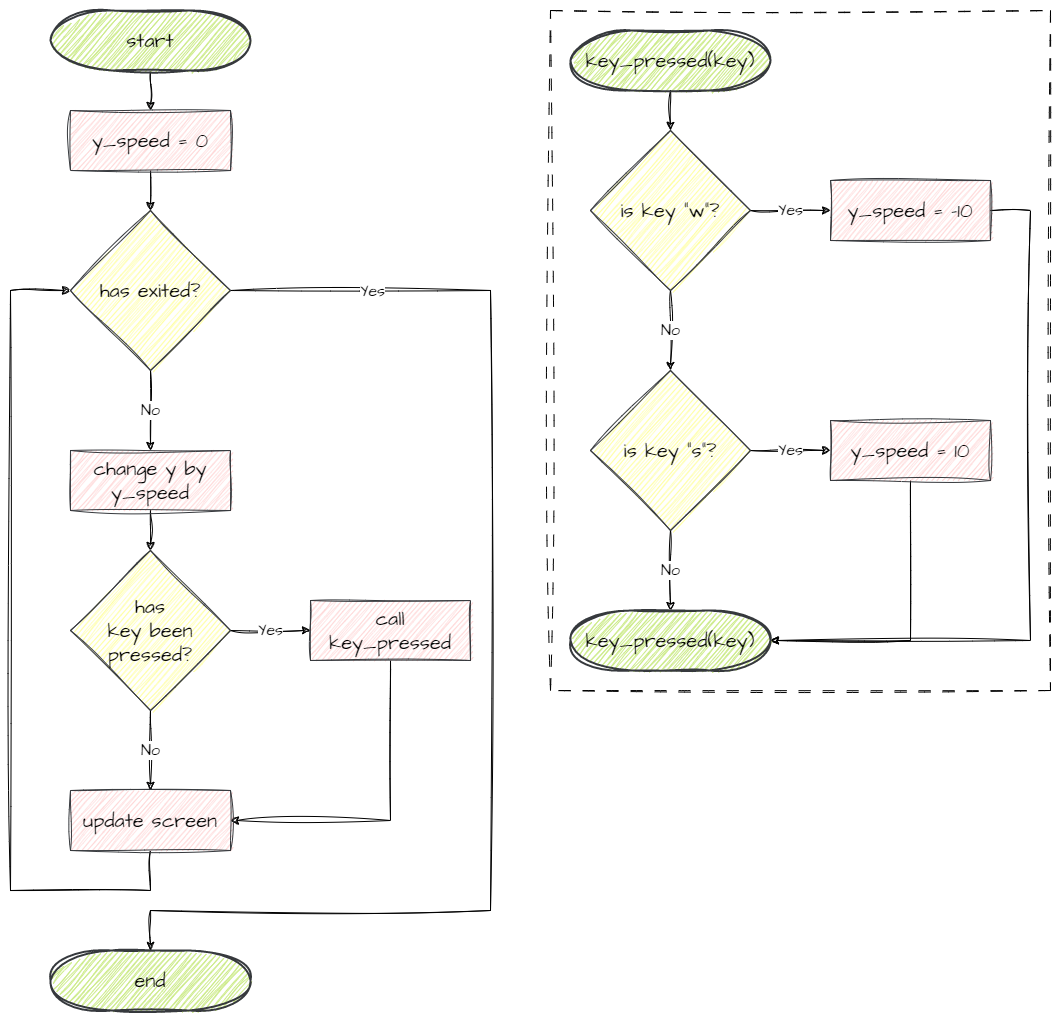
This is the movement we already have in our key_pressed method:
| Objects/Ship.py | |
|---|---|
In motion while a key is pressed
Below is the flowchart for in motion while a key is pressed. Notice that:
y_speedstays at0, soynever changes by itself- the key press changes
ydirectly, so while W is held down,ydecreases by 10 every frame
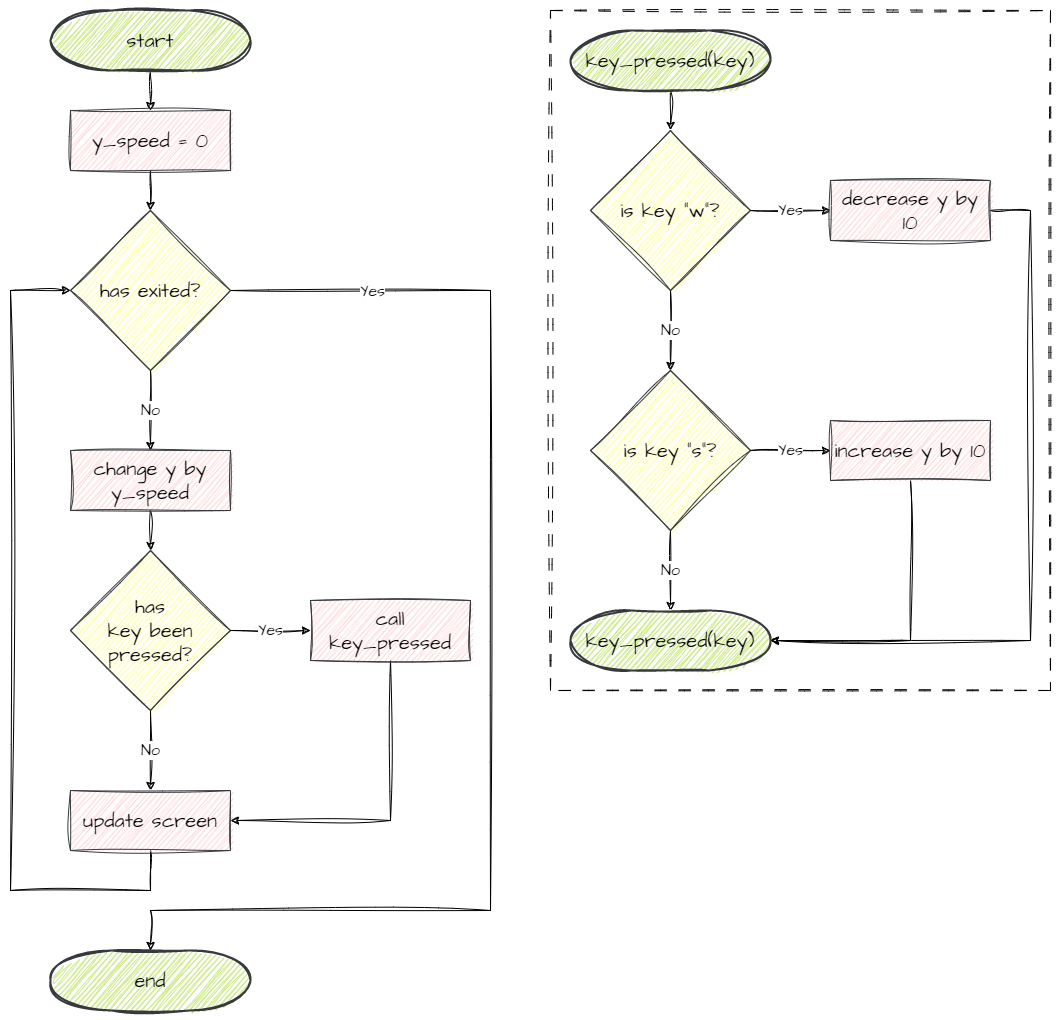
To try this movement, change the highlighted lines in the key_pressed method in Objects/Ship.py.
| Objects/Ship.py | |
|---|---|
Code explanation
- line 28 → while W is held, moves the ship up 10 pixels by decreasing
ydirectly. - line 30 → while S is held, moves the ship down 10 pixels by increasing
ydirectly.
PRIMM
- Predict how this movement will feel different from the last one.
- Run MainController.py and try it.
- Investigate: what happens when you let go of the key? Why?
Always in motion with acceleration
Below is the flowchart for always in motion with acceleration. It combines the last two approaches:
y_speedis used to updateyevery frame- pressing a key increases or decreases
y_speed - this gives the ship a sense of acceleration: the longer we hold a key, the faster the ship moves that way
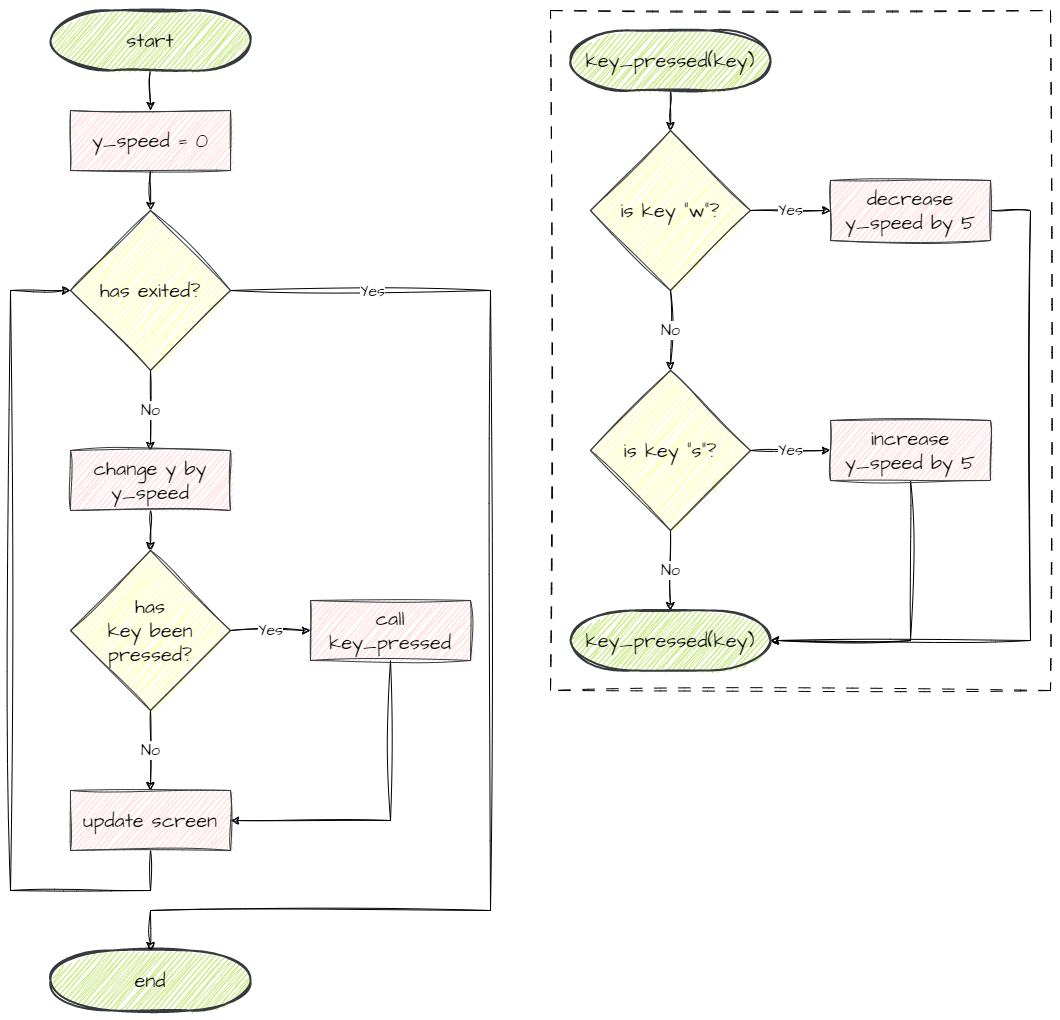
To try this movement, change the highlighted lines in the key_pressed method.
| Objects/Ship.py | |
|---|---|
Code explanation
- line 28 → while W is held, reduces
y_speedby 5 every frame, so the ship speeds up going up (or slows down if it was going down). - line 30 → while S is held, increases
y_speedby 5 every frame, so the ship speeds up going down.
PRIMM
- Predict what will happen if you hold W for a long time.
- Run MainController.py and try it.
- Investigate: how do you stop the ship? Is this harder or easier to control?
Choose your movement
Try all three options, then choose the one you want to use in your game.
The lessons use always in motion
The rest of the lessons show the always in motion code. If you choose a different movement, your key_pressed method will look a little different from the code on the pages, and that's fine. Just keep your own version when you add the highlighted lines.
Commit and push
- In GitHub Desktop, type Chose ship movement in the Summary box.
- Click Commit to main.
- Click Push origin.