8. Moving Asteroids
In this lesson we will learn
- how to set an object's direction with an angle
- how to bounce an object off the top and bottom of the screen
- how to tell when an object has left the screen
- how to delete an object from a Room
- how to use
printand the terminal for testing
Terminology
- Cartesian plane – a flat surface where every position is described by an x and a y coordinate.
- x and y components – the horizontal and vertical parts that any movement on the screen can be split into.
- memory leak – when a program keeps using memory it no longer needs, so it uses more and more over time and may slow down or crash.
In this lesson we'll add all the movement for the asteroids:
- moving left at a random angle when they spawn
- bouncing off the top and bottom of the screen
- de-spawning when they move past the left of the screen
Let's get going.
Starting movement
Planning
So far, our objects have only moved up and down the y-axis. We want the asteroids to move diagonally, on both the x-axis and the y-axis. We could use trigonometry to work out the x_speed and y_speed we need, but Steven Tucker has already done the hard work for us.
The RoomObject methods include set_direction, which makes an object move at an angle and a speed. In GameFrame, 0° is moving right, and the angles go clockwise (because y increases going down the screen): 90° is down, 180° is left and 270° is up.
We want some randomness in the direction, so we'll choose an angle from a range. Let's look at our options.
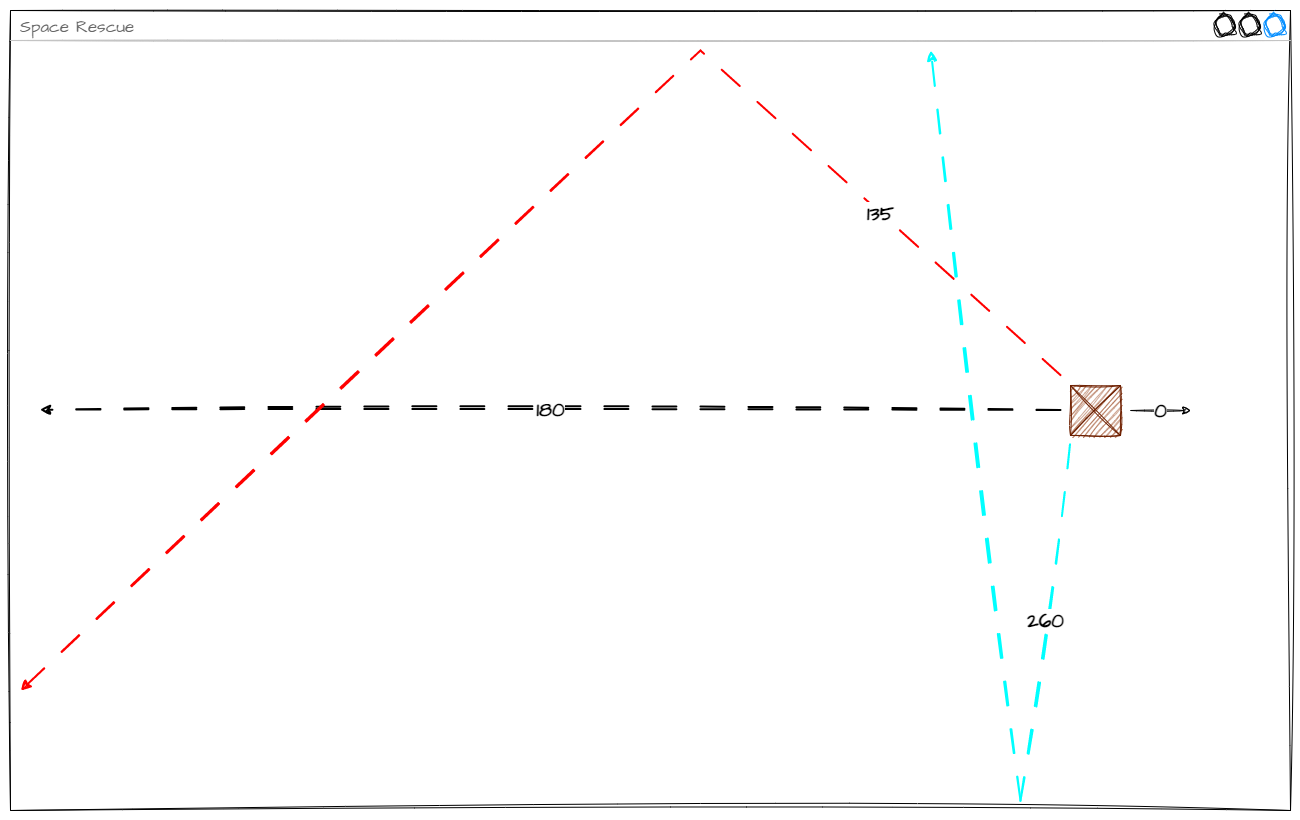
180°(black line) moves straight across the screen135°(red line) is 45° less than 180° and gives a nice bounce across the screen260°(blue line) is 80° more than 180° and mostly bounces up and down, barely crossing the screen
So the best range is 180° plus or minus 45°, which is 135 to 225.
Which way do the angles go?
The diagram measures angles anticlockwise, like in maths. GameFrame measures them clockwise, because y increases going down the screen, so in our game 135° actually heads down and to the left, and 225° heads up and to the left. Our range is the same distance either side of 180°, so it works the same either way.

Coding
Open Objects/Asteroid.py and add the highlighted code below.
Code explanation
- line 2 → imports the
randommodule so we can userandint. - line 21 → chooses a random whole number from 135 to 225 for the angle.
- line 22 → starts the asteroid moving at that angle, at a speed of 10 pixels per frame.
PRIMM
- Predict how the asteroids will move now.
- Run MainController.py.
- Investigate: what happens when an asteroid reaches the top or bottom of the screen?
Bouncing off the top and bottom
Planning
We want the asteroids to bounce off the top and bottom of the screen so they stay in the window. To do that, we need to understand how set_direction works.
The screen is a Cartesian plane (it has x and y coordinates), so any movement is made of an x component and a y component.
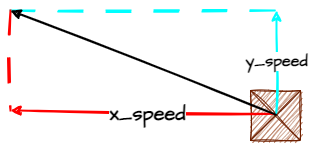
When we use set_direction, GameFrame uses trigonometry to work out the x_speed and y_speed. That means we already know how to bounce an object off the top and bottom, because we did it for Zork: negate its y_speed. The only difference is that Zork's x_speed is 0.

Coding
Just like Zork, we need:
- a
keep_in_roommethod that negates the asteroid'sy_speedif it's touching the top or bottom of the screen - a
stepmethod that callskeep_in_roomon every tick
Go back to Objects/Asteroid.py and add the highlighted code below.
Code explanation
- line 1 → imports
Globalsso we can use the screen height. - line 24 → defines the
stepmethod, which runs on every tick. - lines 25–27 → a docstring that explains what the method does.
- line 28 → calls
keep_in_roomon every tick. - line 30 → defines the
keep_in_roommethod. - lines 31–33 → a docstring that explains what the method does.
- line 34 → checks if the asteroid has gone above the top of the screen…
- line 35 → …moves it back to the top edge, so it can't get stuck outside the screen…
- line 36 → …and negates
y_speed, so it bounces back down. - line 37 → otherwise, checks if the asteroid has gone below the bottom of the screen…
- line 38 → …moves it back to the bottom edge…
- line 39 → …and negates
y_speed, so it bounces back up.
PRIMM
- Predict what the asteroids will do at the top and bottom of the screen now.
- Run MainController.py.
- Investigate: how is this different from Zork's
keep_in_room? Why do lines 35 and 38 help?
De-spawning asteroids
When an asteroid leaves the screen on the left, we want to destroy it. Why? Each object uses a little bit of memory. If we never destroy them, all those little bits add up, slow the computer down and can eventually crash it. That's called a memory leak. It would take a very long game for our asteroids to do that, but it's good programming practice to destroy objects we no longer need.
Memory leaks
A memory leak is when a program keeps using memory it no longer needs. The program uses more and more memory over time, which can cause performance problems and even crashes.
Planning
We know how to tell when an object touches the top or bottom of the screen, but how do we know when it has gone past the left edge? Let's work it out:
- left and right is the x-axis, so we're looking at x values
- the left edge of the screen is at
x = 0 - an object has left the Room when its right-hand side is less than
0 - the right-hand side of an object is
x + width(see below)
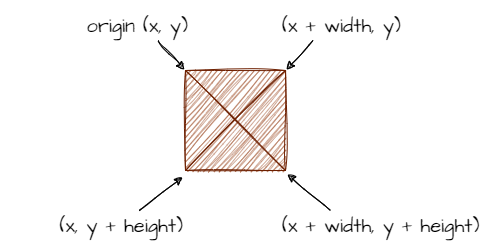
So the trigger is self.x + self.width < 0.
Now, how do we de-spawn an object? Looking at the RoomObject methods, there's a delete_object method. That sounds about right.

Coding
Still in Objects/Asteroid.py, add the highlighted code below.
Code explanation
- line 29 → calls
outside_of_roomon every tick, to check if the asteroid has left the screen. - line 42 → defines the
outside_of_roommethod. - lines 43–45 → a docstring that explains what the method does.
- line 46 → checks if the asteroid's right-hand side has gone past the left edge of the screen (the trigger in our IPO table)…
- line 47 → …and deletes the asteroid.
self.roomis the Room this asteroid is in, and(self)is the object to delete: this asteroid.
Why self.room.delete_object(self)?
It looks repetitive, but it hints at what else delete_object can do. Because we tell it which object to delete, the same method can delete other objects in the Room, not just this one. We'll use that when lasers hit asteroids.
PRIMM
- Predict what you'll see when an asteroid leaves the screen.
- Run MainController.py.
- Investigate: how can you tell whether the asteroid was deleted?
How did it go? Were the asteroids deleted? How could you tell?
The problem is that the asteroid is already off the screen when outside_of_room deletes it, so we can't see anything happen. In situations like this, it's useful to print to the terminal to see what's going on inside our program.
Go back to Objects/Asteroid.py and add the highlighted line below.
| Objects/Asteroid.py | |
|---|---|
Code explanation
- line 47 → prints
asteroid deletedin the terminal every time an asteroid is deleted.
PRIMM
- Predict what will appear in the terminal.
- Run MainController.py and watch the terminal in VS Code.
- Investigate: count the asteroids that leave the screen. Does the terminal agree?
Testing with print
Printing to the terminal is a quick way to check that code we can't see is running. Once we're sure it works, we can delete the print line or leave it there while we keep building.
Commit and push
- In GitHub Desktop, type Moved asteroids in the Summary box.
- Click Commit to main.
- Click Push origin.