14. Lives
In this lesson we will learn
- how to compare two algorithms with flowcharts
- how to change an object's image while the game is running
- how to store images in a list and choose one with an index
- how to reset global variables so the game can be played again
Terminology
- life – one of a limited number of chances a player has before the game ends.
- data structure – a way of organising and storing data so it is easy to use.
- global variable – a variable that can be used anywhere in the program and keeps its value for as long as the program runs.
At the moment, hitting just one asteroid ends the game. That's a bit harsh, so the last step in building our game is to give the player lives.
Planning
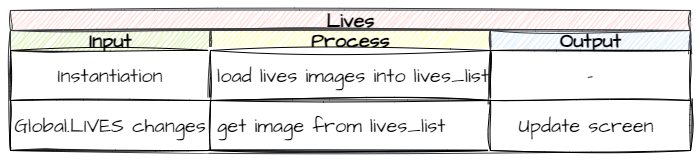
What mechanism can we use for lives? The Globals variables include LIVES, which works just like SCORE.
We could show the number of lives as a number, but that's a bit boring. Instead we'll show hearts. Look in the Images/Lives_frames folder and you'll see five images, with 1 to 5 hearts. When the player loses a life, we'll change the image. How can we do that?
So far we've only used set_image in __init__, to give an object its image when it's created. But nothing stops us using set_image at other times, like when the player loses a life. Remember, we use load_image to find an image before we pass it to set_image.
Here are flowcharts of two ways we could do this:
- Method 1 → each time
LIVESchanges, load the image and then set it - Method 2 → load all the images into a list once, then set the image when
LIVESchanges
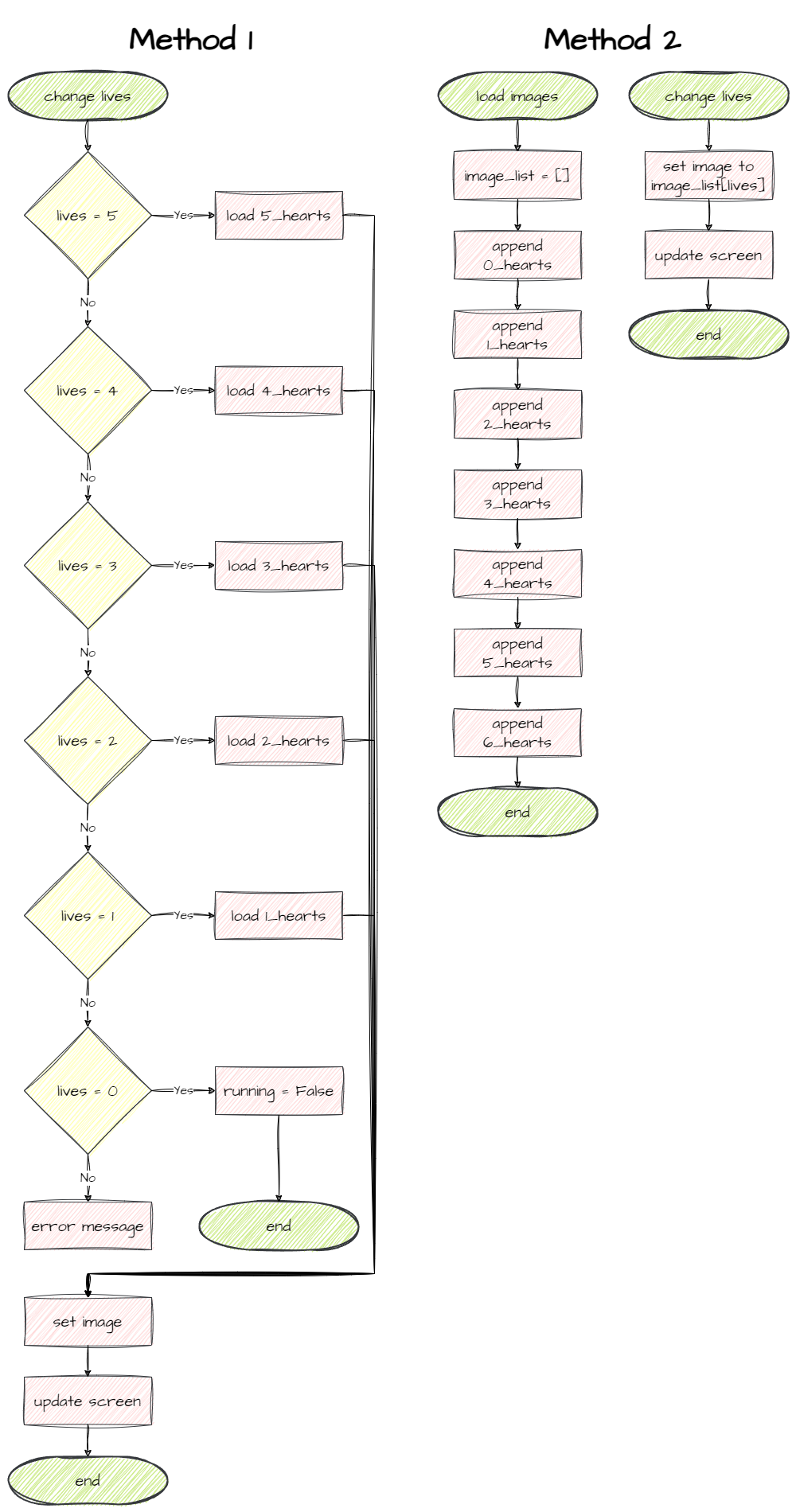
If lives only ever go down, both methods do the same amount of work, because each number of lives is only shown once.
Method 2 is better if lives can go up as well as down. Then any number of lives might be shown several times. Method 1 would load an image every time, but Method 2 still only loads each image once.
When to use data structures
Data structures organise and store data so it's easy to use. The most common Python data structures are lists, tuples, dictionaries and sets.
Use a data structure to group values that belong together. For example, we use a tuple to group coordinates, because x and y belong together: (x, y).
We want to leave the door open for bonus lives later, so we'll use Method 2.
Coding
Create the Lives class
The hearts are part of the HUD, so the Lives class goes in Objects/Hud.py. Open it, add the highlighted code below and save it.
Code explanation
- line 1 → imports
RoomObjectas well, becauseLivesshows an image, so it's a RoomObject rather than a TextObject. - line 30 → defines the
Livesclass as a subclass ofRoomObject. - lines 31–33 → a docstring that explains what the class is for.
- line 34 → defines the
__init__method. - lines 35–37 → a docstring that explains what the method does.
- line 38 → runs
RoomObject's__init__method. - line 41 → creates an empty list called
lives_iconto store the images. - line 42 → loops through the numbers 1 to 5 (
range(1, 6)stops before 6)… - line 43 → …and adds each image to the list. The f-string builds each file name from the number, for example
Lives_frames/Lives_3.png. - line 44 → calls
update_imageto show the starting number of lives. - line 46 → defines the
update_imagemethod. - lines 47–49 → a docstring that explains what the method does.
- line 50 → sets the image to the one that matches
Globals.LIVES. List indexes start at0, so we subtract 1: with 3 lives it showslives_icon[2], which is Lives_3.png.
Open Objects/__init__.py, change the highlighted code below and save it.
| Objects/__init__.py | |
|---|---|
Code explanation
- line 7 → imports the
Livesclass from Hud.py as well asScore.
Add the lives to the Room
Open Rooms/GamePlay.py, add the highlighted code below and save it.
Code explanation
- line 4 → imports the
Livesclass as well asScore. - line 22 → creates a Lives object near the top-right of the screen and stores it in
self.lives, so other objects can update it. - line 23 → adds the Lives object to the Room.
PRIMM
- Predict what you'll see in the top-right corner.
- Run MainController.py.
- Investigate: change
LIVES = 3in Globals.py to5. What changes? Change it back when you're done.
Lose a life
Now we connect Globals.LIVES to the collision between an Asteroid and the Ship. That collision is handled in the Asteroid class, so open Objects/Asteroid.py, change the highlighted code below and save it.
| Objects/Asteroid.py | |
|---|---|
Code explanation
- line 59 → deletes this asteroid, so it can't hit the ship again.
- line 60 → takes one life off
Globals.LIVES. - line 61 → checks if the player still has lives left…
- line 62 → …and if so, updates the hearts on the screen…
- line 63 → …otherwise…
- line 64 → …ends the GamePlay Room, so the game is over.
PRIMM
- Predict what will happen each time an asteroid hits the ship.
- Run MainController.py and lose all three lives.
- Investigate: now press space on the welcome screen to play again. What happens?
Playing again
When the game ends, we go back to the welcome screen. But if we press space to play again, something strange happens: the screen shows five hearts, and the first asteroid that hits us ends the game. Let's work out why.
Globalskeeps its values for as long as the program runs, so when the new game starts,Globals.LIVESis still0from the last game.update_imageshowsself.lives_icon[Globals.LIVES - 1], which islives_icon[-1]. In Python, index-1is the last item in a list, so we see Lives_5.png.- When an asteroid hits us,
Globals.LIVESgoes down to-1, which isn't greater than0, so the game ends straight away.
The score has the same problem: it carries over from the last game. We need to reset both when a new game starts.
A new game starts when the player presses space on the welcome screen, so open Objects/Title.py, add the highlighted code below and save it.
Code explanation
- line 1 → imports
Globalsso the Title can reset the score and lives. - line 25 → sets the score back to
0for the new game. - line 26 → sets the lives back to
3for the new game.
PRIMM
- Predict what will happen when you play a second game now.
- Run MainController.py, lose all your lives, then press space to play again.
- Investigate: what would happen if we reset the score in
GamePlayinstead? Is there a difference?
Commit and push
- In GitHub Desktop, type Added lives in the Summary box.
- Click Commit to main.
- Click Push origin.
That's the core game finished. Next, in Game Design, we'll learn what makes games fun and use those ideas to improve Space Rescue.