2. GamePlay Room
In this lesson we will learn
- what event-driven programming is
- how to create a second Room and set the order of Rooms
- how to plan an event handler with a flowchart
- how to listen for and handle key presses in GameFrame
- how to change from one Room to the next
Terminology
- register – to link an object or event handler to an event, so the program tells it when that event happens.
- event loop – the part of an event-driven program that keeps checking for events and runs the matching event handlers.
- index – the number that gives an item's position in a list, starting from
0. - trigger – the event or condition that causes an action to happen.
In this lesson we'll create the main Room for our game. All the gameplay happens in this Room, so we'll call it GamePlay. We will:
- create a new Room called GamePlay
- make it the next Room after the WelcomeScreen
- make the game switch from the WelcomeScreen to GamePlay when the player presses space
Before we start, we need to understand event-driven programming.
Event-driven programming
Event-driven programming is when a program waits for events to happen and then responds to them. Instead of running from top to bottom, the program listens for events, such as a key press or two objects colliding, and runs the code that matches each one.
That makes sense for a game. We want the game to respond when the player does something, or when objects bump into each other.
An event-driven program usually works like this:
- Identify the events that will trigger actions.
- Write event handlers: the code that runs when an event happens.
- Register the event handlers, so each one is linked to its event.
- Start the event loop, which keeps checking for events.
- When an event happens, the event loop runs its event handler.
- Repeat until the program ends.
GameFrame looks after most of these steps for us, but it's important to know the terms before we continue.
Create the GamePlay Room
We create the GamePlay Room the same way we created the WelcomeScreen Room:
- Create a new file in the Rooms folder
- Import the
Levelclass from GameFrame - Create and initialise the
GamePlayclass, and give it a background - Add the new class to Rooms/__init__.py
Create a new file in the Rooms folder, add the code below and save it as GamePlay.py.
| Rooms/GamePlay.py | |
|---|---|
Code explanation
- line 1 → imports the
Levelclass from GameFrame. - line 3 → defines the
GamePlayclass as a subclass ofLevel. - line 4 → defines the
__init__method, which runs when the Room is created. - line 5 → runs
Level's__init__method, soGamePlayinherits everything a Room needs. - line 8 → sets the Room's background to background.png.
Open Rooms/__init__.py, add the highlighted code below and save it.
| Rooms/__init__.py | |
|---|---|
Code explanation
- line 2 → imports the
GamePlayclass, so GameFrame can find it.
Make GamePlay the next Room
Now we need to tell GameFrame that GamePlay comes after the WelcomeScreen. Open GameFrame/Globals.py and look for the levels variable. The GameFrame API tells us it holds the names of all the Rooms, in the order the player moves through them.
Right now it's the default list ["WelcomeScreen", "Maze", "ScrollingShooter", "BreakOut"]. Our game doesn't have the last three Rooms, so change the highlighted code below and save the file.
| GameFrame/Globals.py | |
|---|---|
Code explanation
- line 19 → lists our two Rooms in the order they're played: WelcomeScreen first, then GamePlay.
- line 25 → sets the Room GameFrame goes to when the game ends. Index
0is the WelcomeScreen, the first Room inlevels.
end_game_level must be a real Room
end_game_level is an index into the levels list. The default value 4 would point past the end of our two-Room list and crash the game, so we set it to 0.
Change Rooms with the space key
Now we can create the trigger that swaps from the WelcomeScreen to GamePlay. Remember, the game logic lives in RoomObjects, so let's look at RoomObject in the GameFrame API.
There are two things about keys: the handle_key_events variable and the key_pressed method.
Register for key events
The handle_key_events variable decides whether an object is told about key presses. To listen for key events we set it to True. We want the Title to listen for key presses, so go back to Objects/Title.py and add the highlighted code below.
Code explanation
- line 15 → registers the Title for key events, so GameFrame will call its
key_pressedmethod on every frame.
Handle key presses
When handle_key_events is True, GameFrame calls the object's key_pressed method and gives it a parameter called key. key holds the state of every key on the keyboard, and key[pygame.K_SPACE] is True while space is held down. The key names are in the Pygame docs.
So what should happen when space is pressed? We want to close the WelcomeScreen Room so the game moves to the next Room, GamePlay. Checking the GameFrame API, Rooms have a running variable, and setting it to False stops the Room. That's what we want.
Putting that together in a flowchart:
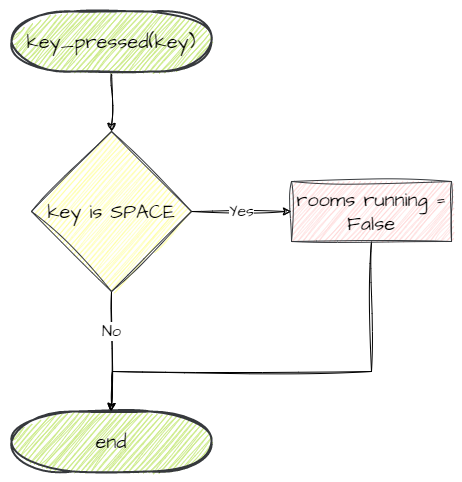
The only tricky part is that our code is in the Title, but running belongs to the WelcomeScreen. How can the Title reach its Room?
Remember how we added the Title to the WelcomeScreen:
| Rooms/WelcomeScreen.py | |
|---|---|
The self we passed in is the WelcomeScreen, so the Title knows which Room it's in. The GameFrame API says a RoomObject stores this in its room variable, so the Title can use self.room.running.
Now we can write our code. Still in Objects/Title.py, add the highlighted code below and save it.
Code explanation
- line 2 → imports Pygame, because we need its key name
K_SPACE. - line 18 → defines the
key_pressedevent handler, which GameFrame calls withkey, the state of every key. - lines 19–21 → a docstring that explains what the method does.
- line 23 → checks if the space key is pressed…
- line 24 → …and sets the Room's
runningvariable toFalse, which ends the WelcomeScreen so the game moves on to GamePlay.
PRIMM
- Predict what will happen when we run the game and press space.
- Run MainController.py and press space.
- Investigate: what happens if you press another key? Why?
The welcome screen should show, and when we press space the title should disappear, because we're now in the empty GamePlay Room.
Commit and push
We've finished and tested another section of code, so let's commit it.
- In GitHub Desktop, type Created GamePlay room in the Summary box.
- Click Commit to main.
- Click Push origin.