10. Laser
In this lesson we will learn
- how to plan a new object with an IPO table
- how to spawn an object when a key is pressed
- how to split a long instruction over several lines
- how to use a flag variable to track the state of the program
Terminology
- style guide – a set of rules for how code should be written and laid out so it is easy to read, such as keeping lines to 79 characters or fewer.
Zork is hurling asteroids at our defenceless spaceship, so we'd better give it a way to fight back. In this lesson we'll arm the ship with a laser.
Shooting the laser
Planning
We want the ship to spawn a laser whenever we press the space key.

This involves:
- creating a new
Laserclass - adding a space-key event handler to the Ship, which creates a Laser
- making the laser move across the Room when it spawns
- deleting the laser when it leaves the Room
We already know how to do all of this, so let's get coding.
Create the Laser class
Create a new file in the Objects folder, add the code below and save it as Laser.py.
Code explanation
- line 1 → imports
RoomObjectandGlobals. - line 3 → defines the
Laserclass as a subclass ofRoomObject. - lines 4–6 → a docstring that explains what the class is for.
- line 8 → defines the
__init__method. - lines 9–11 → a docstring that explains what the method does.
- line 13 → runs
RoomObject's__init__method. - lines 16–17 → loads laser.png and gives it to the laser at 33 × 9 pixels.
- line 20 → starts the laser moving at
0°(right) at 20 pixels per frame. - line 22 → defines the
stepmethod, which runs on every tick. - lines 23–25 → a docstring that explains what the method does.
- line 26 → calls
outside_of_roomon every tick. - line 28 → defines the
outside_of_roommethod. - lines 29–31 → a docstring that explains what the method does.
- line 32 → checks if the laser has gone past the right edge of the screen. The laser moves right, so we check its
xagainst the screen width… - line 33 → …and deletes the laser.
Open Objects/__init__.py, add the highlighted code below and save it.
| Objects/__init__.py | |
|---|---|
Code explanation
- line 5 → imports the
Laserclass, so GameFrame can find it.
Shoot from the Ship
Open Objects/Ship.py and add the highlighted code below.
Code explanation
- line 2 → imports the
Laserclass, because the Ship creates lasers. - line 32 → checks if the space key is pressed…
- line 33 → …and calls the Ship's
shoot_lasermethod. - line 50 → defines the
shoot_lasermethod. - lines 51–53 → a docstring that explains what the method does.
- lines 54–56 → create a new Laser in the Ship's Room, at the right-hand side of the ship (
self.x + self.width) and halfway down it (self.y + self.height/2, moved up 4 pixels because the laser is 9 pixels high). - line 57 → adds the new laser to the Room.
Splitting instructions over several lines
Lines 54–56 are one instruction split over three lines to make it easier to read.
The Python style guide recommends lines of no more than 79 characters, so we don't have to scroll sideways to read them. We can start a new line after any , between arguments (like in the code above), and after any , in a list, dictionary or tuple. Putting a long expression inside brackets ( ) lets us start a new line after any operator too.
PRIMM
- Predict what will happen when you press space.
- Run MainController.py and press space. Then hold space down.
- Investigate: what happens when you hold space down? Why?
Limiting the laser
When you held down space, did you see a constant stream of lasers? Some of the other objects may have even frozen.
The Ship's key_pressed method runs every frame, so holding space spawns a laser 30 times a second. That's a lot of lasers! We need to limit how often the ship can shoot.
Planning
We'll use a flag variable to limit how often the Ship can spawn a Laser.
Flag variables
A flag variable (or Boolean flag) is a variable that's either True or False. It records the state of something in the program, like a flag that's either up or down, and our code checks it to decide what to do.
We'll create a flag called can_shoot, starting as True. A laser can only spawn when can_shoot is True. Every time a laser spawns, can_shoot is set to False and a timer starts. When the timer ends, can_shoot goes back to True.
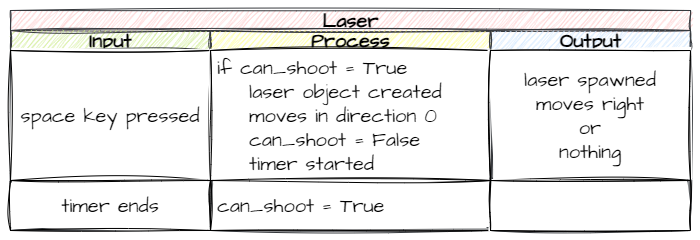
Coding
This is all about spawning lasers, which happens in the Ship, so go back to Objects/Ship.py and change the highlighted code below.
Code explanation
- line 23 → creates the
can_shootflag and sets it toTrue, so the ship can shoot when the game starts. - line 56 → checks if the ship is allowed to shoot.
- lines 57–60 → create and add the laser like before. They haven't changed, except they're indented one more level so they're inside the
if. - line 61 → sets
can_shoottoFalse, so no more lasers can spawn yet. - line 62 → starts a 10-tick timer (one third of a second) that calls
reset_shotwhen it finishes. - line 64 → defines the
reset_shotmethod, which the timer calls. - lines 65–67 → a docstring that explains what the method does.
- line 68 → sets
can_shootback toTrue, so the ship can shoot again.
PRIMM
- Predict what will happen when you hold space down now.
- Run MainController.py and hold space down.
- Investigate: change the
10on line 62 to3, then to30. How does it change the game? Choose the value you like best.
Commit and push
- In GitHub Desktop, type Added laser in the Summary box.
- Click Commit to main.
- Click Push origin.