Button
On this page we will learn
- how to connect the PiicoDev Button
- how to check whether it is pressed or was pressed
- how to detect double presses and count presses
- how to use more than one button
Documentation
Documentation is the official guide written by the people who made the code library, and we can use it to look up every method and its parameters, including ones that aren't covered on this page.
Every program that uses the Button needs these files in its folder, next to main.py. Click a file name to download it.
- PiicoDev_Unified.py → handles communication with all PiicoDev modules
- PiicoDev_Switch.py → the Button driver
The example folders in your tutorial files already have these files. See Upload the files for how to put them on the micro:bit.
The PiicoDev Button is a large push button that detects presses, double presses and counts how many times it has been pressed.
Possible uses:
- extra game controls
- start and stop buttons
- emergency stop buttons
- counters
Connect it
- Connect the button to the PiicoDev adapter with a PiicoDev cable. See Using PiicoDev.
- Upload these files to the micro:bit with
main.py:PiicoDev_Unified.pyPiicoDev_Switch.py
- To use more than one button, give each one a different setting on the ID switches on its back. See Using more than one button.
Set it up
Methods
| Method | Parameters | Returns | Description |
|---|---|---|---|
button.is_pressed |
none | Boolean | True while the button is held down |
button.was_pressed |
none | Boolean | True if the button was pressed since the last check |
button.was_double_pressed |
none | Boolean | True if the button was double pressed since the last check |
button.press_count |
none | int | Number of presses since the last check |
These are properties, so they have no brackets.
is_pressed
Is True while the button is being held down.
PRIMM
- Predict what you think will happen. Be specific.
- Run the program.
- Time to investigate the code. What does each line do?
Code explanation
- line 1 → imports all the commands from the
microbitlibrary. - line 2 → imports the Button driver.
- line 5 → creates the button and calls it
button. - line 8 → starts an endless loop.
- line 9 → checks if the button is being held down.
- line 10 → if it is, shows a happy face.
- line 11 → if it isn't…
- line 12 → …shows a sad face.
- line 13 → waits 100 milliseconds before the loop repeats.
was_pressed
Is True if the button has been pressed since the last check, even if it has been let go.
PRIMM
- Predict what you think will happen. Be specific.
- Run the program.
- Time to investigate the code. What does each line do?
Code explanation
- line 1 → imports all the commands from the
microbitlibrary. - line 2 → imports the Button driver.
- line 5 → creates the button and calls it
button. - line 8 → starts an endless loop.
- line 9 → checks if the button was pressed since the last check.
- line 10 → if it was, shows a happy face.
- line 11 → if it wasn't…
- line 12 → …shows a sad face.
- line 13 → waits 1 second. A quick press during this wait is still detected on the next loop.
was_double_pressed
Is True if the button has been pressed twice quickly since the last check.
PRIMM
- Predict what you think will happen. Be specific.
- Run the program.
- Time to investigate the code. What does each line do?
Code explanation
- line 1 → imports all the commands from the
microbitlibrary. - line 2 → imports the Button driver.
- line 5 → creates the button and calls it
button. - line 8 → starts an endless loop.
- line 9 → checks if the button was double pressed since the last check.
- line 10 → if it was, shows a happy face.
- line 11 → if it wasn't…
- line 12 → …shows a sad face.
- line 13 → waits 1 second before the loop repeats.
press_count
Gives the number of presses since the last check, then resets the count to 0.
PRIMM
- Predict what you think will happen. Be specific.
- Run the program.
- Time to investigate the code. What does each line do?
Code explanation
- line 1 → imports all the commands from the
microbitlibrary. - line 2 → imports the Button driver.
- line 5 → creates the button and calls it
button. - line 8 → starts an endless loop.
- line 9 → prints the number of presses since the last check, then the count resets.
- line 10 → waits 2 seconds, giving you time to press the button.
Using more than one button
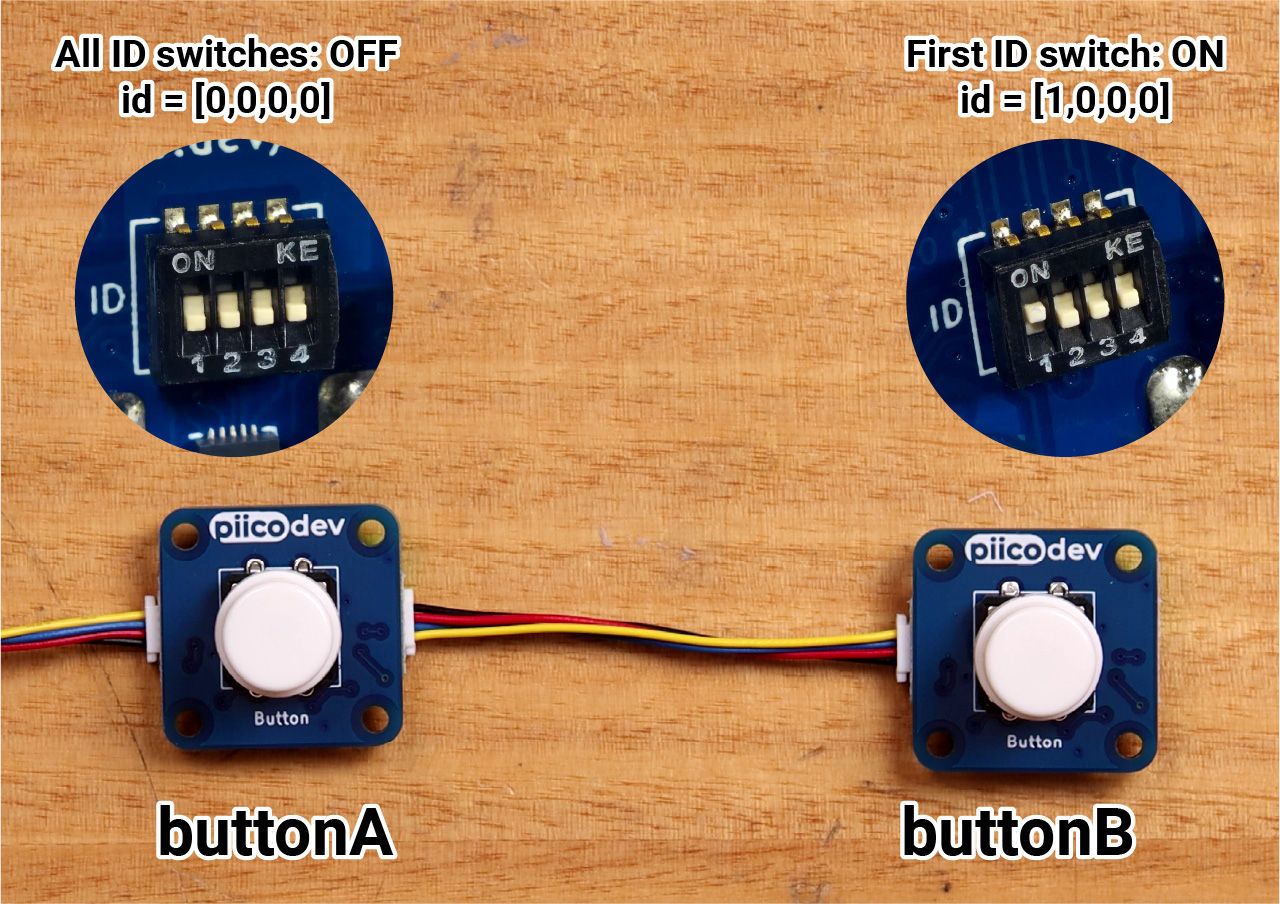
We can connect up to 16 buttons at once. Each button needs a different setting on its four ID switches, so our program can tell them apart. When we create each button, we give it an id that matches its switches: 1 for a switch that is on and 0 for a switch that is off.
Connect one button with all its ID switches off (0, 0, 0, 0), and a second button with only the first switch on (1, 0, 0, 0).
PRIMM
- Predict what you think will happen. Be specific.
- Run the program.
- Time to investigate the code. What does each line do?
Code explanation
- line 1 → imports all the commands from the
microbitlibrary. - line 2 → imports the Button driver.
- line 5 → creates the button with ID
0, 0, 0, 0and calls itbuttonA. - line 6 → creates the button with ID
1, 0, 0, 0and calls itbuttonB. - line 9 → starts an endless loop.
- line 10 → checks if
buttonAis being held down. - line 11 → if it is, shows
A. - line 12 → if it isn't, checks if
buttonBis being held down. - line 13 → if it is, shows
B. - line 14 → if neither button is held down…
- line 15 → …clears the display.
- line 16 → waits 100 milliseconds before the loop repeats.
Naming our buttons
The micro:bit already has button_a and button_b, so we call our PiicoDev buttons buttonA and buttonB to keep them separate. In a bigger program, we give each button a name that says what it does, such as start and stop, so our code is easier to read.