Your First Program
On this page we will learn
- how MicroPython runs programs on the micro:bit
- how to open, create, run and stop a program
- what the PRIMM process is
- how our programs are organised
- how to upload a program so it runs by itself
Terminology
- directory – another name for a folder that holds files on a computer or micro:bit.
- PRIMM – a five-step way of learning to code: Predict, Run, Investigate, Modify and Make.
- library – a collection of ready-made code that we import to use in our programs.
- millisecond – one thousandth of a second, so 1000 milliseconds make 1 second.
- setup – the part of a program that runs once when it starts, for creating devices and giving variables their starting values.
- main loop – the part of a program, inside
while True:, that repeats forever to read inputs, make decisions and control outputs. - process – the step where our program works out what to do with its inputs, using calculations and decisions.
- upload – to copy a file from the computer onto the micro:bit so the program can run without the computer.
Before we create our first program, we need to understand how MicroPython works. This page shows how we create, run and upload every program in this course. Come back here whenever you need a reminder.
How MicroPython runs programs
When a micro:bit running MicroPython turns on, it looks for a file called main.py and runs it. A project can have other files, but it must have a main.py.
A folder can't have two files with the same name, so every program gets its own folder with its own main.py. That is why we have a separate folder for each example and exercise in the tutorial files.
Open an example
- In Thonny's Files panel, navigate to the microbit_tutorials folder.
- Open the folder for the page you are working on (for example,
micropython), then the folder for the example (for example,first_program). - Double-click
main.pyto open it.
Create a new program
Use this when you want to write your own program.
- In the Files panel, go to the folder where you want to save your program.
-
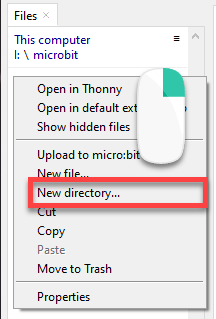
Right-click and choose New directory..., then give the folder a name that describes your program.
-
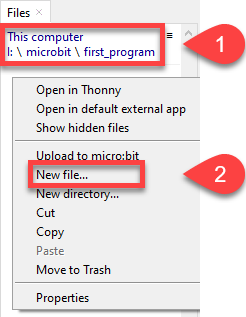
Open the new folder, right-click and choose New file....
-
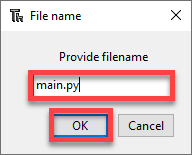
Name the file main.py and click OK.
Directories vs folders
Directories and folders are the same thing. "Directory" comes from older text-based operating systems; "folder" became common with graphical interfaces that use folder icons.
Run and stop a program
- Run → click Thonny's green Run button (or press F5). The program runs on the micro:bit while it is connected to your computer.
- Stop → click the red Stop button before you open or run a different program.
Run the first program
We are going to run our program for the first time. Open micropython/first_program/main.py:
Throughout this course, we will use the PRIMM process to help us learn:
- Predict → before running the code, write down what you think will happen
- Run → run the program and check your prediction
- Investigate → work out what each line does
- Modify → change the code and see what happens
- Make → use what you have learnt to make your own program
Let's try it now.
PRIMM
- Predict what you think will happen. Be specific.
- Run the program.
- Time to investigate the code. What does each line do?
Code explanation
- line 1 → imports all the commands from the
microbitlibrary. - line 4 → starts an endless loop.
- line 5 → scrolls
"Hello world!"across the display. - line 6 → shows the built-in heart image.
- line 7 → waits 1000 milliseconds (1 second) before the loop repeats.
How our programs are organised
Our first program only has two parts: an import and a loop. Most programs in this course have three parts, always in this order:
- imports → bring in the libraries our program uses
- setup → runs once when the program starts, to create devices and give variables their starting values
- main loop → the
while True:loop that repeats forever
Inside the main loop, our code reads its input, works out what to do with it (the process step), then produces its output. We'll see this structure on every page. Creating Your Program explains it in more detail, and shows how to plan, wire up and build our own projects.
Upload a program
When we unplug the micro:bit and plug it back in, the program doesn't restart. If we look at the Files panel, we can see the problem: our code is on the computer, not on the micro:bit.
To solve this, we need to upload the code to the micro:bit:
- Stop any running program.
-
In the This computer part of the Files panel, right-click
main.pyand choose Upload to micro:bit.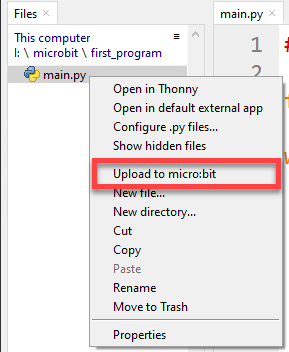
-
main.pynow appears in both the computer and micro:bit parts of the Files panel.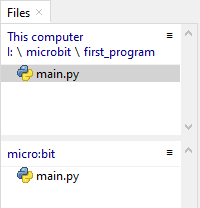
-
Unplug the micro:bit, then power it from the battery pack. The program runs without the computer.
Two copies of main.py
You now have two copies of main.py. They do not sync. Changing one does not change the other.
Use this habit:
- always edit the copy on your computer → this is your main copy
- then upload it to the micro:bit
Exercises
PRIMM
Time to modify the code and see what happens.
Starter files are in the micropython folder of your tutorial files. Solutions are on the Exercise Solutions page.
Exercise 1
Starter: micropython/ex1_message
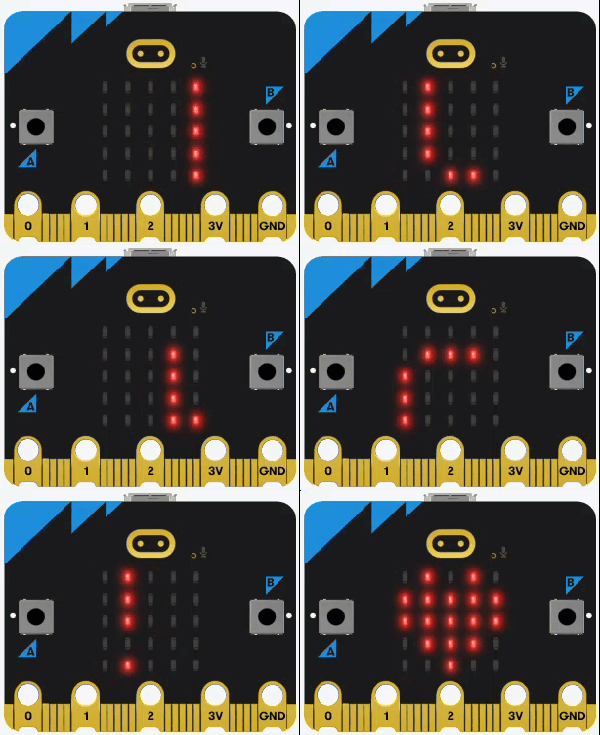
Can you make it show a different message? For example:
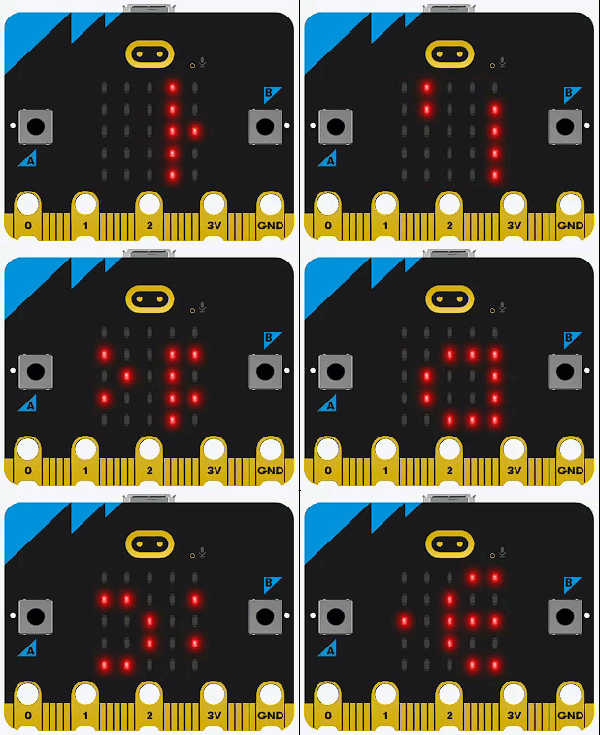
Exercise 2
Starter: micropython/ex2_shapes
Can you make it show other shapes? For example:
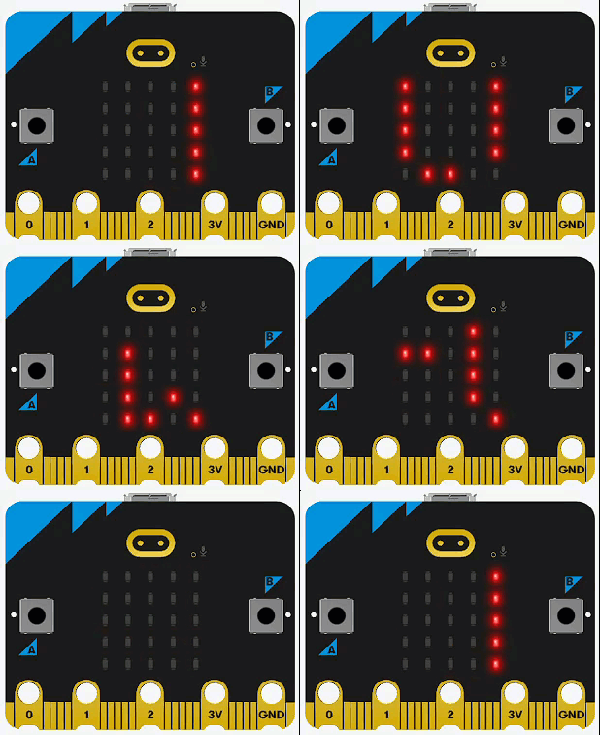
Exercise 3
Starter: micropython/ex3_no_loop
What happens if you remove the while True: line (and the indenting under it)? Why?
Exercise 4
What happens if you unplug the micro:bit and plug it back in before uploading the program? Why?