Lesson 12: Mouse Input
In this lesson we will learn
- how to make the turtle respond to mouse clicks
- how to use
if,elifandelsewith Boolean operators to decide what happens - how to use coordinates to work out where the user clicked
Terminology
- mouse input – information a program gets from the mouse, such as where the user clicked.
- quadrant – one of the four sections a window is split into by lines through its centre.
There is no video for this lesson.
Mouse input in turtle
So far, the user has only typed input into the Shell. But turtle can also take input from the mouse (and even the keyboard).
Type the code below into a new file, or open mouse_dots.py from the lesson_12 folder of the tutorial files. Save it as mouse_dots.py.
PRIMM
- Predict what will happen when we run the code and click in the turtle window.
- Run the code, then click in different parts of the turtle window. Watch the Shell too. Did it match your prediction?
- Time to investigate the code. What does each line do?
Code explanation
- line 1 → imports the turtle module.
- line 4 → defines a function called
set_scene, which gets the window ready. - line 5 → makes a window 800 pixels wide and 600 pixels high.
- line 6 → tells turtle to run the
draw_dotfunction whenever the mouse is clicked in the window. - line 7 → sets
my_ttlto its fastest speed, so the lines appear straight away. - line 8 → starts a
forloop that repeats twice. - lines 9–10 → draw a line 400 long, from the centre to the side of the window, and back again.
- line 11 → turns
my_ttl90 degrees to the right. - lines 12–13 → draw a line 300 long, from the centre to the top or bottom of the window, and back again.
- line 14 → turns
my_ttl90 degrees to the right. - line 15 → lifts the pen, so
my_ttlwon't draw a line when it moves to a click. - line 18 → defines a function called
draw_dotwith two parameters,xandy: the position of the mouse click. - line 19 → prints the click's
xandyposition in the Shell. - line 20 → stores
"orange"incolor. - line 21 → stores
10insize. - line 22 → moves
my_ttlto the click's position. - line 23 → draws a dot where
my_ttlis, using the size insizeand the colour incolor. - line 26 → creates a turtle called
my_ttl. - line 27 → calls
set_sceneto set up the window. - line 28 → hides
my_ttl. - line 29 → keeps the window open and waiting for mouse clicks.
Python runs this program in a different order from the way it's written:
- Lines 26–29 run first: they create the turtle, set up the window, hide the turtle and wait for clicks.
- Lines 4–15, the
set_scenefunction, run when line 27 calls it. The four lines it draws split the window into four sections, called quadrants. - Lines 18–23, the
draw_dotfunction, run every time we click. We never calldraw_dotourselves: line 6 tells turtle to call it for us, and turtle always sends it the click'sxandyposition.
PRIMM
Time to modify the code. What happens if you comment out line 15? Why?
Exercises
In this course, the exercises are the make part of PRIMM. Work through them to make your own code.
Right now, every dot is orange. In these exercises, the quadrant we click in will decide the dot's colour. To do this, we'll need:
if,elifandelsestatements- comparison operators
- Boolean operators
We also need to remember how turtle coordinates work: (0, 0) is the centre, x is bigger to the right, and y is bigger towards the top.
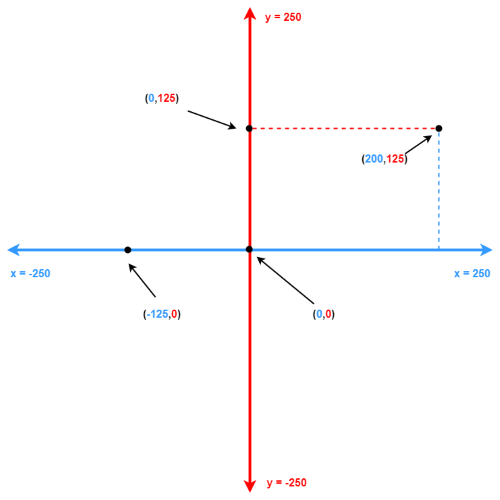
Starter files are in the lesson_12 folder of the tutorial files. Solutions are on the Exercise Solutions page.
Exercise 1
Starter: lesson_12/ex1_top_right
Can you add an if statement to draw_dot, after color = "orange", so the dot is red when we click in the top-right quadrant? To make the dot red, use color = "red".
Hint
Look at the coordinates diagram. What is true about x and y for every point in the top-right quadrant? We need to check both, so we'll need a Boolean operator.
Exercise 2
Starter: lesson_12/ex2_if_else
Can you use if and else so the dot is red when we click in the top-right quadrant, and green when we click anywhere else?
Exercise 3
Starter: lesson_12/ex3_quadrants
Can you use if, elif and else so each quadrant has its own colour? The dot should be:
- red in the top-right quadrant
- blue in the top-left quadrant
- yellow in the bottom-left quadrant
- green in the bottom-right quadrant