Lesson 1: Thonny Introduction
In this lesson we will learn
- how to set up Thonny, the program we use to write and run Python
- how to write and run our first program
- what comments are and why we use them
- how to read error messages and use them to fix our code
Terminology
- Python – the text-based programming language we use to write our programs.
- Thonny – a program for writing, running and debugging Python code that is designed for beginners.
- script – a Python program saved as a text file.
- user interface – the screen of a program that we see and use, often shortened to UI.
- Shell – the panel in Thonny that shows what our program prints and any error messages.
- comment – a line starting with
#that Python ignores, written to help humans understand the code. - built-in function – a command that Python already knows, such as
print, which Thonny colours purple. - syntax error – an error that happens when our code doesn't follow Python's rules.
- syntax highlighting – colouring different parts of our code based on what they do, so it's easier to read and write correctly.
- string – a group of characters, like letters, numbers or symbols, inside quotation marks.
- parentheses – the round brackets
(and), which must always come in matching pairs.
What is Thonny?
Python is the programming language we will use, and Thonny is the program we use to write it.
Think of it like this:
- we use Microsoft Word to write English
- we use Thonny to write Python
Python programs are written as text files called scripts. We could write them in any basic text editor. However, programs like Thonny have extra tools that make coding easier, such as:
- colouring different parts of our code so it's easier to read
- helping us find and fix mistakes
For now, think of Thonny as a text editor with helpful extras built in.
Getting Thonny
Thonny is made for beginners learning Python. It already includes Python, so it's easy to set up.
You can download it from thonny.org.
Setting up Thonny
Before we look at Thonny's screen (called the user interface or UI), we need to turn on a few settings so everyone's Thonny looks the same.
-
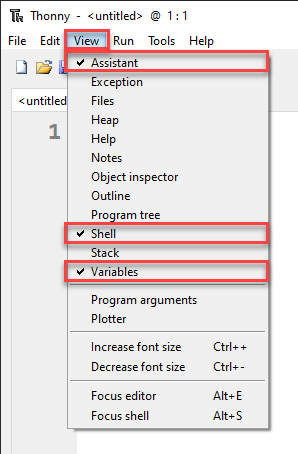
Open the View menu and make sure there is a tick beside Assistant, Shell and Variables.
These panels show us what our program prints, what it stores and any hints about our mistakes.
-
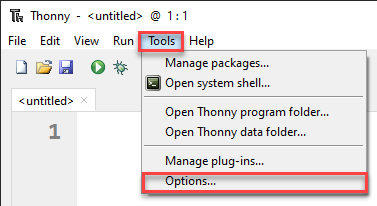
Go to Tools → Options.
-
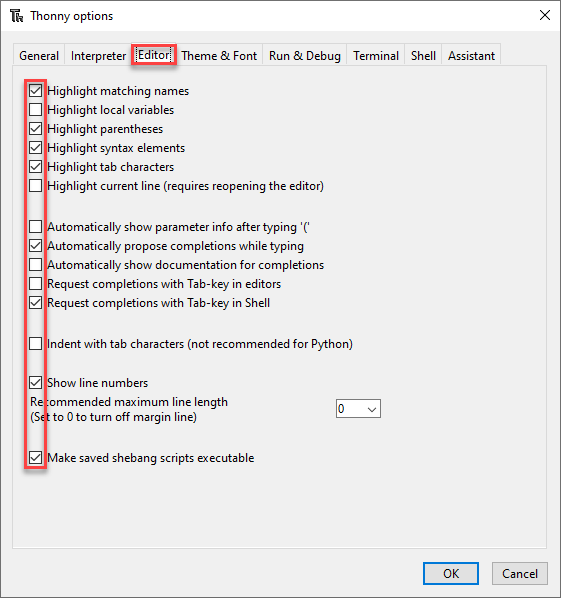
On the Editor tab, make sure the check boxes match the image below.
-
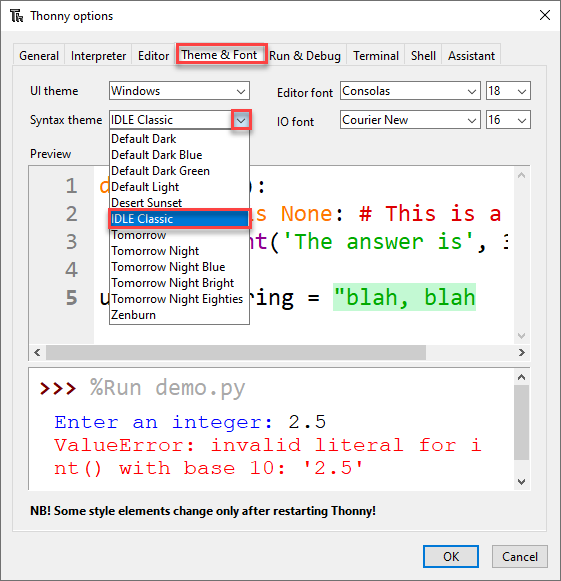
On the Theme & Font tab, set the Syntax theme to IDLE Classic.
This colours our code based on what each part does, which makes it easier to read and to write correctly.
-
Click OK.
Thonny should now look the same as the one in the videos.
The user interface
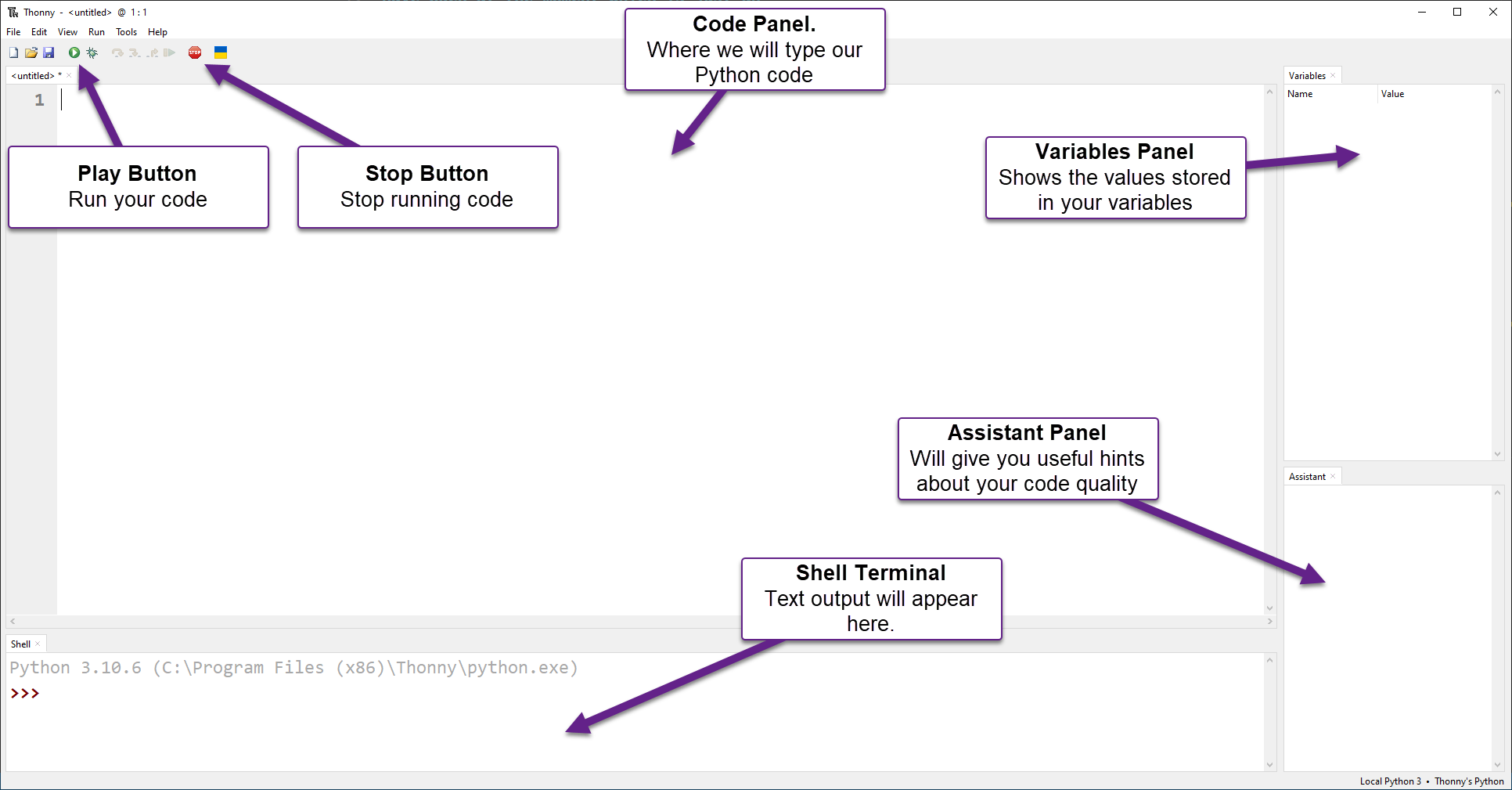
The image below shows the main parts of Thonny we need to know for now. We will learn more about them later.
Saving our work
We will write lots of programs in this course, so let's keep them organised:
- Create a folder for this course, for example
python_turtle. - Inside it, create a folder for each lesson:
lesson_01,lesson_02and so on. - Save each program in its lesson's folder, using the file name the lesson gives us.
Tutorial files
Every program and exercise starter on this site is in the tutorial files zip. The files are already sorted into lesson folders.
Our first program
Our first program is called Hello World. It's the first program most people write when they learn to code.
Create a new file, type in the code below, and save it as hello_world.py.
PRIMM
Throughout this course we will use PRIMM to help us learn. PRIMM stands for:
- Predict: guess what the code will do
- Run: run the code and see what happens
- Investigate: explore how the code works
- Modify: change the code to see what happens
- Make: create our own program
Let's try it now.
PRIMM
- Predict what you think will happen when we run the code.
- Run the code by clicking the Run button (the green play button) or pressing F5. Did the Shell show what you predicted?
- Time to investigate the code. What does each line do?
Code explanation
- line 3 → prints
Hello Worldin the Shell.
Notice that # Our first program doesn't appear in the Shell. When a line starts with #, Python treats it as a comment. Comments are ignored by the computer. They are there to help humans understand the code.
Also notice that print is purple. print is a built-in function: a command that Python already knows. Thonny colours built-in functions purple so we can spot them.
Error messages
Now let's modify the code and make some mistakes on purpose. This will help us learn how to read error messages.
Misspelling a command
Remove the i from print so line 3 says prnt("Hello World"), then run the program. The Shell shows this error:
Let's break down that error message:
- line 1 means "this is what Python just tried to do".
- line 2 tells us where the error is. In this case, the mistake is on line 3 of our program.
- line 3 tells us what went wrong. A
NameErrormeans Python found a word it doesn't recognise, and it shows us that word:prnt.
Fix line 3 so it says print("Hello World") again. Notice that print turns purple again.
Missing quotation marks
Remove the two " so line 3 says print(Hello World), then run the program. The Shell shows a different error:
- line 3 shows the line with the mistake.
- line 4 uses
^symbols to point to where the problem is. - line 5 says it's a
SyntaxError. This means our code doesn't follow Python's rules. Python tries to guess what went wrong, but its guess can be wrong. Here it suggests a comma, but the real problem is the missing quotation marks.
Put the " back. Notice how "Hello World" turns green. This is called syntax highlighting. The green shows that "Hello World" is a string. For now, think of a string as a group of characters, like letters, numbers or symbols, inside quotation marks.
Missing brackets
Remove the ( and ) so line 3 says print "Hello World", then run the program:
This is another SyntaxError. Parentheses are the round brackets ( and ) that we removed. This time Python's hint is helpful: Did you mean print(...)?
An unclosed bracket
Add back only the opening bracket so line 3 says print("Hello World", then run the program:
In Python, every opening bracket ( needs a matching closing bracket ).
Before fixing it, look at line 3 in Thonny. There is a grey highlight starting from the (. This shows the bracket was never closed, and it can help us find mistakes before we even run our code.
Fix line 3 so it says print("Hello World") again.
Error messages are our friend
We will see lots of error messages as we learn to code, and that's normal. Even experienced programmers get errors every day. Error messages tell us what went wrong so we can fix it.
Exercises
In this course, the exercises are the make part of PRIMM. Work through them to make your own code.
Starter files are in the lesson_01 folder of the tutorial files. Solutions are on the Exercise Solutions page.
Exercise 1
Starter: lesson_01/ex1_print_name
Can you change the program so it prints Hello and your name instead of Hello World?
Exercise 2
Starter: lesson_01/ex2_about_me
Can you write a program that prints three lines about you? It should print:
- your name
- your favourite food
- your favourite game
Exercise 3
Starter: lesson_01/ex3_fix_errors
This program has three mistakes. Can you fix them? Run the program, read the error message, fix the line it points to, and repeat until the program runs.